> ## Documentation Index
> Fetch the complete documentation index at: https://docs.stratapt.com/llms.txt
> Use this file to discover all available pages before exploring further.
# Payment Screen
> Where patient payment amounts are surfaced in StrataEMR, how unapplied funds and claim adjudication affect a payment's status, and what each payment field means.
The payment screen is where front desk and billing staff record patient payments — copays, outstanding balances, or a combination of both. It's reached from the patient's Financial card, the Financial menu, or directly from the schedule.
**Access:** All staff can view a patient's case and the Policies page. working in a patient's case. *Access level unconfirmed — verify exact role/permission requirements with Bob or Mariah before publishing.*
## How the Payment Screen Works
Recording a payment does two things: it creates an accurate financial record for the visit, and it determines whether those funds apply immediately or wait until a claim is adjudicated.
A payment made at time of service — before the insurance claim has been processed — is held as **unapplied funds**. Once the claim adjudicates, StrataEMR applies those funds to the patient's balance automatically. This is expected behavior: an unapplied payment isn't a sign of an error, it's a payment waiting on the claim to catch up.
A payment made against a balance that's already been billed — meaning the claim has already adjudicated and StrataPT has mailed the patient a statement — applies directly to that outstanding balance instead of waiting.
## Where You'll See Payment Is Due
### On the Schedule
When you open a visit on the schedule by clicking the pencil icon, you'll see two amounts:
* **Collect** — what to collect for today's visit (the copay or coinsurance)
* **Balance** — the patient's total outstanding account balance across all dates of service
This is the natural moment to flag a payment when a patient arrives. When you move their status from **Scheduled** to **Arrived**, both amounts are visible so you can address them before the visit begins.
### On the Patient's Case
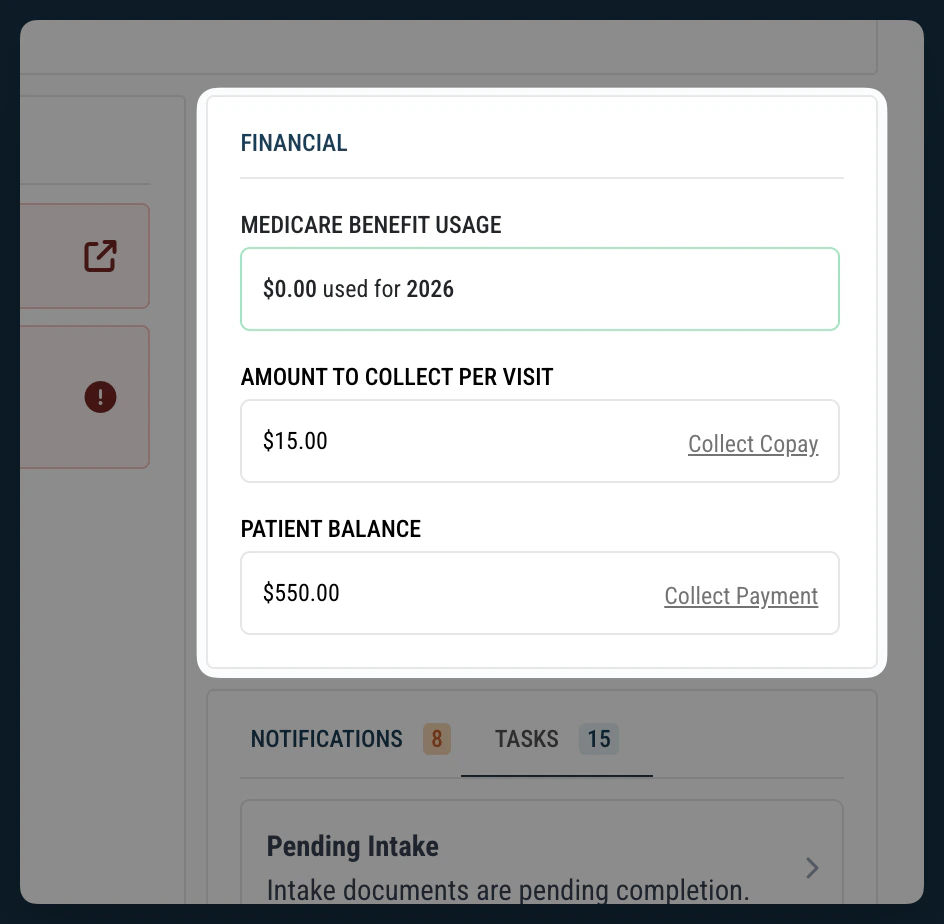
When you're inside a patient's case, the **Financial** card in the right sidebar shows the same two figures:
* **Amount to Collect Per Visit** with a **Collect Copay** link
* **Patient Balance** with a **Collect Payment** link
Both links take you directly to the payment screen.
The sidebar **Notifications** tab may also show a **Current Patient Balance Due** alert with a link to the payment screen, and the **Tasks** tab may show a task for an uncollected payment. That task resolves automatically once the payment is recorded against the correct date of service.
 ### From the Financial Menu
From anywhere inside a patient's case, hovering over **Financial** in the patient menu bar and clicking **Payments** takes you to the same payment screen as the sidebar links.
## Payment Fields
**Payment Date / Service Date** The date the payment was collected and the date of service it should apply to. StrataEMR prioritizes the service date you enter; if no matching service date is found, the payment applies to the oldest outstanding balance.
**Amount** The dollar amount collected.
**Type** *(manual payments only)* Cash, Check, Credit Card (for cards run on a separate terminal), or Other. Selecting Other requires a description in the Notes field.
**Related to Invoice** Set to **Yes** only when the payment is made in response to a statement StrataPT mailed to the patient. Because statements go out only after a claim has fully adjudicated, this in practice means the balance being paid is already adjudicated — the payment applies directly to it. Set to **No** for time-of-service collections made before the claim has adjudicated; the payment is held as unapplied funds and applied automatically once the claim processes.
Note that if a patient's balance consists entirely of Point of Sale charges, StrataPT will not mail a statement for it — this affects whether Related to Invoice should be Yes for that balance.
**Notes** Free text. For checks, recording the check number here is good practice for reconciliation.
## Payment History
The **Payment History** section at the bottom of the payment screen shows every payment recorded for the patient — date, amount, service date, payment type, notes, and whether it was related to an invoice. Payment records can be edited or deleted here if a correction is needed.
## Authorize.net and Online Payment Timing
If your practice uses Authorize.net for credit card processing, payments collected through the patient portal are batched on a schedule set by Authorize.net — typically within 1–2 business days. The payment appears in StrataEMR immediately after it's recorded, but the deposit to your bank account follows Authorize.net's settlement schedule. If expected deposits aren't showing up, confirm the payment processed successfully in StrataEMR before contacting Authorize.net support.
## Related
* [Collect a Patient Payment](/guides/collect-a-patient-payment) — Step-by-step instructions for recording a payment through Authorize.net or manually.
* [How the Recommended Collection Amount Works](/documentation/billing/recommended-amount) — How StrataEMR estimates the copay and coinsurance amounts shown at check-in.
* [Copay, Coinsurance, and Deductible](/guides/billing/copay-coinsurance-deductible) — What each type of patient responsibility means and how it's calculated.
### From the Financial Menu
From anywhere inside a patient's case, hovering over **Financial** in the patient menu bar and clicking **Payments** takes you to the same payment screen as the sidebar links.
## Payment Fields
**Payment Date / Service Date** The date the payment was collected and the date of service it should apply to. StrataEMR prioritizes the service date you enter; if no matching service date is found, the payment applies to the oldest outstanding balance.
**Amount** The dollar amount collected.
**Type** *(manual payments only)* Cash, Check, Credit Card (for cards run on a separate terminal), or Other. Selecting Other requires a description in the Notes field.
**Related to Invoice** Set to **Yes** only when the payment is made in response to a statement StrataPT mailed to the patient. Because statements go out only after a claim has fully adjudicated, this in practice means the balance being paid is already adjudicated — the payment applies directly to it. Set to **No** for time-of-service collections made before the claim has adjudicated; the payment is held as unapplied funds and applied automatically once the claim processes.
Note that if a patient's balance consists entirely of Point of Sale charges, StrataPT will not mail a statement for it — this affects whether Related to Invoice should be Yes for that balance.
**Notes** Free text. For checks, recording the check number here is good practice for reconciliation.
## Payment History
The **Payment History** section at the bottom of the payment screen shows every payment recorded for the patient — date, amount, service date, payment type, notes, and whether it was related to an invoice. Payment records can be edited or deleted here if a correction is needed.
## Authorize.net and Online Payment Timing
If your practice uses Authorize.net for credit card processing, payments collected through the patient portal are batched on a schedule set by Authorize.net — typically within 1–2 business days. The payment appears in StrataEMR immediately after it's recorded, but the deposit to your bank account follows Authorize.net's settlement schedule. If expected deposits aren't showing up, confirm the payment processed successfully in StrataEMR before contacting Authorize.net support.
## Related
* [Collect a Patient Payment](/guides/collect-a-patient-payment) — Step-by-step instructions for recording a payment through Authorize.net or manually.
* [How the Recommended Collection Amount Works](/documentation/billing/recommended-amount) — How StrataEMR estimates the copay and coinsurance amounts shown at check-in.
* [Copay, Coinsurance, and Deductible](/guides/billing/copay-coinsurance-deductible) — What each type of patient responsibility means and how it's calculated.