> ## Documentation Index
> Fetch the complete documentation index at: https://docs.stratapt.com/llms.txt
> Use this file to discover all available pages before exploring further.
# Add a Policy
> Step-by-step guide to adding insurance, self-pay, and other payer types to a patient case in StrataEMR.
The Policies page is where all payer information for a patient's case lives. Before a clinical document can be completed and charges submitted, the date of service must be covered by an active policy. This guide walks you through adding a policy to a patient's case.
**Adding a policy changes how StrataEMR bills the case.** Every case begins as a self-pay case. When a non-self-pay insurance policy is added, the case permanently switches to insurance-rate billing — which affects how StrataPT invoices the practice each month. If you are unsure which policy type to use, check with your Practice Admin or StrataPT Customer Success team member before saving.
**Complete patient demographics first.** The Add a new policy or payer button does not appear until the patient's last name, first name, date of birth, gender, and treating therapist have been entered. If demographics are incomplete, StrataEMR displays a red alert with a **Fix It** button — click it to go directly to the demographics form.
***
## Navigate to the Policies Page
Navigate to Policies: **Patient Menu Bar > Patient Info > Policies**
***
## Select a Payer Type
Click **Add a new policy or payer**. A dropdown appears listing the available payer types. The type you select determines how StrataEMR handles billing behind the scenes — it controls claim submission format, billing order, and how patient responsibility is calculated.
| Payer Type | When to Use |
| ---------------------------------- | -------------------------------------------------------------------------------------------------------------------------------------- |
| Medical (Primary) | The patient's main commercial or government insurance |
| Medical (Secondary) | A second insurance that pays after the primary |
| Medical (Tertiary) | A third insurance that pays after secondary |
| Worker's Comp | Work-related injury billed to an employer's workers comp carrier |
| Liability / Auto | Auto accident or general liability claim |
| Attorney | Attorney billing where the attorney is the sole responsible party |
| Attorney (After Medical/Liability) | Attorney billing that should only be billed after other insurances are exhausted first (visible after a primary policy has been added) |
| Self-Pay | Patient pays directly with a flat rate or per-charge fee schedule |
| Financial Arrangement | A negotiated reduced rate applied after all other policies have processed |
***
## Understand the Self-Pay Case Indicator
StrataEMR surfaces the case's current billing rate type in three places — on the case header, on the Policies page, and inside the Add Policy form. Together they help all staff understand what type of case they are working in before making changes.
**Case header badge:** A badge at the top of every case displays whether it is currently billed at self-pay or insurance rates. This is visible to all users at all times, not just when adding a policy.
 **Policies page alert (Practice Admins and Business Owners only):** Users with a Practice Admin or Business Owner role see an alert directly on the Policies page explaining the case's current billing rate and how StrataPT will invoice the practice for reimbursements collected on this case. There is a separate version of this alert for self-pay cases and for insurance-rate cases.
**Add Policy modal — contextual guidance for all users:** When you click Add a new policy or payer, a banner may appear inside the form depending on the case's current status.
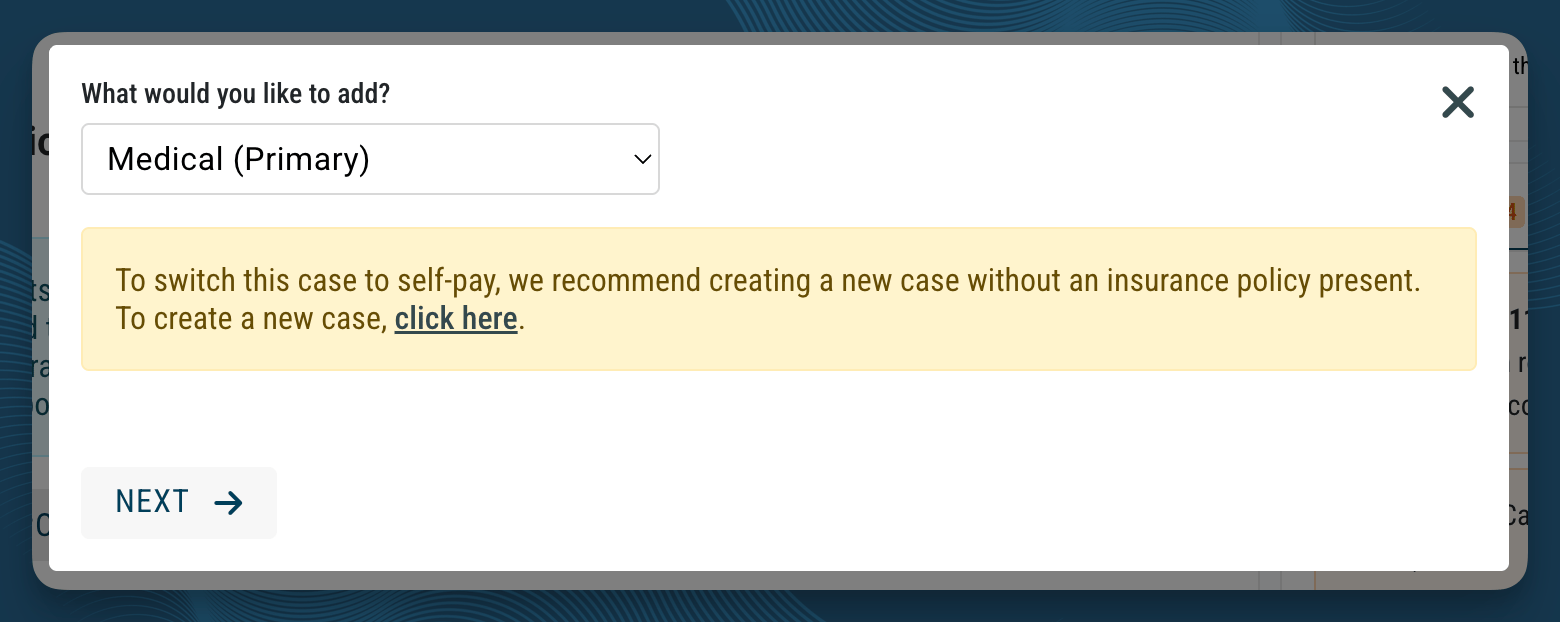
If this case already has an insurance policy on file and you select Self-Pay from the dropdown, a yellow warning banner appears, with a quick link to clone the case.
> "To switch this case to self-pay, we recommend creating a new case without an insurance policy present. To create a new case, click here."
**Policies page alert (Practice Admins and Business Owners only):** Users with a Practice Admin or Business Owner role see an alert directly on the Policies page explaining the case's current billing rate and how StrataPT will invoice the practice for reimbursements collected on this case. There is a separate version of this alert for self-pay cases and for insurance-rate cases.
**Add Policy modal — contextual guidance for all users:** When you click Add a new policy or payer, a banner may appear inside the form depending on the case's current status.
If this case already has an insurance policy on file and you select Self-Pay from the dropdown, a yellow warning banner appears, with a quick link to clone the case.
> "To switch this case to self-pay, we recommend creating a new case without an insurance policy present. To create a new case, click here."
 If this is a self-pay case that already has at least one policy on file and you attempt to add a non-contract policy, a blue informational banner appears. It explains that adding this policy will permanently switch the case to insurance-rate billing. Review the banner before saving.
If this is a brand-new case with no policies yet, no banner appears — nothing has been established yet.
***
## Fill In the Policy Details
After selecting the payer type, complete the policy form. Required fields vary by payer type, but all medical policies require a subscriber ID and policy start and end dates.
**Policy dates determine document access.** If a patient's policy has a start date of June 1 and you need to complete documentation for a May date of service, StrataEMR will not allow document completion until a valid policy covering that date is present. Correct the start date or add a policy that covers the gap before attempting to finalize documentation.
For **Medicare Advantage (Medicare Replacement Plan)** policies, enter the policy as Medical (Primary). When the New Policy form opens, locate the **Is this a Medicare Replacement Plan?** field and select **Yes**. This tells StrataEMR to bill the Advantage plan directly and formats the claim accordingly.
**Medicare Supplement plans are different.** Enter Medicare Supplement plans as Medical (Secondary), not as a replacement plan. Because Medicare Advantage cards look like standard commercial insurance cards, they are easy to misidentify — confirm with the patient or look for a Medicare contract or plan name on the card when in doubt.
For **Dual Eligible (Medicare + Medicaid)** patients, enter the policy as Medical (Primary) and navigate to the **Benefits** tab. Set the **Dual Eligible Plan** field to **Yes**. StrataEMR automatically generates the Medicaid secondary — do not manually add a second policy. If the Medicare payer does not process the Medicaid portion, set **Is this a Medicare Replacement Plan?** to **Yes** instead, then load the Medicaid processor separately as Medical (Secondary).
| Scenario | Policy Setup |
| -------------------------------------------------------------------- | ----------------------------------------------------------------------------------------------------------------------- |
| Patient has a Medicare Advantage plan | Medical (Primary) → set **Is this a Medicare Replacement Plan?** to Yes |
| Patient is dual eligible; payer processes both Medicare and Medicaid | Medical (Primary) → set **Dual Eligible Plan** to Yes on Benefits tab; system auto-generates secondary |
| Patient is dual eligible; Medicare payer does not process Medicaid | Medical (Primary) → set **Is this a Medicare Replacement Plan?** to Yes; load Medicaid processor as Medical (Secondary) |
| Patient has traditional Medicare only | Medical (Primary), no additional fields needed |
***
## Policy Billing Order
If a patient has multiple active policies, StrataEMR bills them in the order they appear on the Policies page — primary first, then secondary, then tertiary. Contact your customer success team through the Get Help area if you need assistance with changing the policy order.
If this is a self-pay case that already has at least one policy on file and you attempt to add a non-contract policy, a blue informational banner appears. It explains that adding this policy will permanently switch the case to insurance-rate billing. Review the banner before saving.
If this is a brand-new case with no policies yet, no banner appears — nothing has been established yet.
***
## Fill In the Policy Details
After selecting the payer type, complete the policy form. Required fields vary by payer type, but all medical policies require a subscriber ID and policy start and end dates.
**Policy dates determine document access.** If a patient's policy has a start date of June 1 and you need to complete documentation for a May date of service, StrataEMR will not allow document completion until a valid policy covering that date is present. Correct the start date or add a policy that covers the gap before attempting to finalize documentation.
For **Medicare Advantage (Medicare Replacement Plan)** policies, enter the policy as Medical (Primary). When the New Policy form opens, locate the **Is this a Medicare Replacement Plan?** field and select **Yes**. This tells StrataEMR to bill the Advantage plan directly and formats the claim accordingly.
**Medicare Supplement plans are different.** Enter Medicare Supplement plans as Medical (Secondary), not as a replacement plan. Because Medicare Advantage cards look like standard commercial insurance cards, they are easy to misidentify — confirm with the patient or look for a Medicare contract or plan name on the card when in doubt.
For **Dual Eligible (Medicare + Medicaid)** patients, enter the policy as Medical (Primary) and navigate to the **Benefits** tab. Set the **Dual Eligible Plan** field to **Yes**. StrataEMR automatically generates the Medicaid secondary — do not manually add a second policy. If the Medicare payer does not process the Medicaid portion, set **Is this a Medicare Replacement Plan?** to **Yes** instead, then load the Medicaid processor separately as Medical (Secondary).
| Scenario | Policy Setup |
| -------------------------------------------------------------------- | ----------------------------------------------------------------------------------------------------------------------- |
| Patient has a Medicare Advantage plan | Medical (Primary) → set **Is this a Medicare Replacement Plan?** to Yes |
| Patient is dual eligible; payer processes both Medicare and Medicaid | Medical (Primary) → set **Dual Eligible Plan** to Yes on Benefits tab; system auto-generates secondary |
| Patient is dual eligible; Medicare payer does not process Medicaid | Medical (Primary) → set **Is this a Medicare Replacement Plan?** to Yes; load Medicaid processor as Medical (Secondary) |
| Patient has traditional Medicare only | Medical (Primary), no additional fields needed |
***
## Policy Billing Order
If a patient has multiple active policies, StrataEMR bills them in the order they appear on the Policies page — primary first, then secondary, then tertiary. Contact your customer success team through the Get Help area if you need assistance with changing the policy order.