> ## Documentation Index
> Fetch the complete documentation index at: https://docs.stratapt.com/llms.txt
> Use this file to discover all available pages before exploring further.
# Searching for a Patient
> How to find patients in StrataEMR — using the search bar, patient lists, PID lookup, and advanced search flags.
StrataEMR offers several ways to find a patient depending on where you are in the system and how much information you have on hand.
**Access:** All staff can search for patients.
***
## Search Bar
The search bar is located in the top-right corner of every page in StrataEMR. It searches across all patient accounts — active and inactive.
**How search works:**
* Search uses **Last Name First Name** order, or a partial match against either name
* Typing only part of a name works — for example, searching `Chris` will return Christina, Christopher, etc.
* If only one patient matches your search, StrataEMR automatically opens that account to save you a click
* Search is not case-sensitive
**Examples:**
| What you type | What it finds |
| -------------- | ----------------------------------------------------------------------- |
| `Garcia Maria` | Cases where last name contains "Garcia" AND first name contains "Maria" |
| `gar mar` | Same result — partial matches work for both names |
| `Sample` | All cases where last name contains "Sample" |
***
## Patient Lists
Hovering over the person icon in the **Patient Menu** provides three list views:
**Active Patients** — Displays all patients currently set to Active status. This is the most common view for day-to-day use.
**All Patients** — Displays every patient account regardless of status, including discharged and inactive. Use this when you can't find someone in the Active list.
**Recent Patients** — Shows the 5 most recently viewed patient accounts. Useful for quickly returning to a patient you were just working on.
Clicking any patient name in these lists opens their Demographics page.
***
## Searching from the Schedule
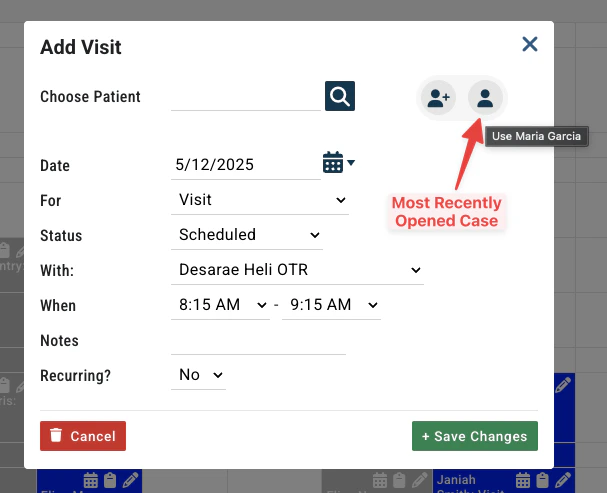
When adding an appointment from the schedule, the patient search in the scheduling window only returns **active patients by default**. If you need to schedule a patient who is inactive, use the `/active` or `/inactive` flags described below, or reactivate the patient first.
After opening a patient case and navigating to the schedule, the last case you had open is available for quick selection via the icon to the right of the search field.
 ***
## Searching by Payer
Payer names can also be entered in the patient search bar. Searching the name delivers all patients with a policy through that payer. Clarifying your search with the syntax options noted below allow more specific results.
***
## Advanced Search Flags
StrataEMR supports a set of search flags that can be appended to any search term for more targeted results. These are especially useful when a basic search returns too many results or when searching by insurance.
| Search syntax | What it finds |
| ------------------ | ----------------------------------------------------------------------------------- |
| `Garcia /active` | Patients with last name containing "Garcia" who are Active |
| `Garcia /inactive` | Patients with last name containing "Garcia" who are Inactive |
| `Aetna /all` | All patients (active and inactive) with a policy payer name containing "Aetna" |
| `Humana /active` | Active patients only with a policy payer name containing "Humana" |
| `BCBS /primary` | All patients with a policy payer name containing "BCBS" in the primary payer slot |
| `BCBS /secondary` | All patients with a policy payer name containing "BCBS" in the secondary payer slot |
| `BCBS /tertiary` | All patients with a policy payer name containing "BCBS" in the tertiary payer slot |
**`/active` is the default when searching from the schedule.** The flags are most useful when you need to override that default or search by insurance from the dashboard search bar.
***
## Finding a Patient by PID
Every patient account is automatically assigned a unique **PID (Patient Identification Number)** at creation. The PID displays next to the patient's legal name on their Demographics page.
PIDs are particularly useful when a patient has multiple accounts — each account has its own PID, making it easy to identify the correct one when contacting StrataPT support or cross-referencing records.
To locate a patient by PID, enter the PID number directly into the search bar, including the "P" at the beginning of the number.
***
## Searching by Payer
Payer names can also be entered in the patient search bar. Searching the name delivers all patients with a policy through that payer. Clarifying your search with the syntax options noted below allow more specific results.
***
## Advanced Search Flags
StrataEMR supports a set of search flags that can be appended to any search term for more targeted results. These are especially useful when a basic search returns too many results or when searching by insurance.
| Search syntax | What it finds |
| ------------------ | ----------------------------------------------------------------------------------- |
| `Garcia /active` | Patients with last name containing "Garcia" who are Active |
| `Garcia /inactive` | Patients with last name containing "Garcia" who are Inactive |
| `Aetna /all` | All patients (active and inactive) with a policy payer name containing "Aetna" |
| `Humana /active` | Active patients only with a policy payer name containing "Humana" |
| `BCBS /primary` | All patients with a policy payer name containing "BCBS" in the primary payer slot |
| `BCBS /secondary` | All patients with a policy payer name containing "BCBS" in the secondary payer slot |
| `BCBS /tertiary` | All patients with a policy payer name containing "BCBS" in the tertiary payer slot |
**`/active` is the default when searching from the schedule.** The flags are most useful when you need to override that default or search by insurance from the dashboard search bar.
***
## Finding a Patient by PID
Every patient account is automatically assigned a unique **PID (Patient Identification Number)** at creation. The PID displays next to the patient's legal name on their Demographics page.
PIDs are particularly useful when a patient has multiple accounts — each account has its own PID, making it easy to identify the correct one when contacting StrataPT support or cross-referencing records.
To locate a patient by PID, enter the PID number directly into the search bar, including the "P" at the beginning of the number.