> ## Documentation Index
> Fetch the complete documentation index at: https://docs.stratapt.com/llms.txt
> Use this file to discover all available pages before exploring further.
# Updating a Template Fragment
> How to edit a fragment in StrataEMR — the building blocks of your clinical documentation templates — along with important considerations for the updating of fragments.
Template Fragments and Selections are the core building blocks of clinical documentation in StrataEMR, designed to ensure **speed, compliance, and accurate data capture** across your practice. By pre-filling repetitive information, you reduce manual entry and allow clinicians to focus on patient care, contributing to the platform's goal of high first-pass clean claims. This article explains how to efficiently and safely update these fragments.
**Access:** All clinical staff can create and complete documents. Editing fragments and selections in the Setup area requires **Therapy Director** permissions or above. Front Desk staff can view clinical documents but cannot edit them.
***
## Key Concepts
Template documents are structured with two main components:
* **Fragments:** These are the larger, re-usable content sections within a template (e.g., a "Goals Table" or a block of text). Think of them as the *questions* or sections that need to be completed in a clinical note.
* **Selections:** These are the smaller, interactive fields within a Fragment. They represent the *answers* and can be open-ended text boxes (Free Text) or pre-defined pick-list options (like "Goal Type: Short Term").
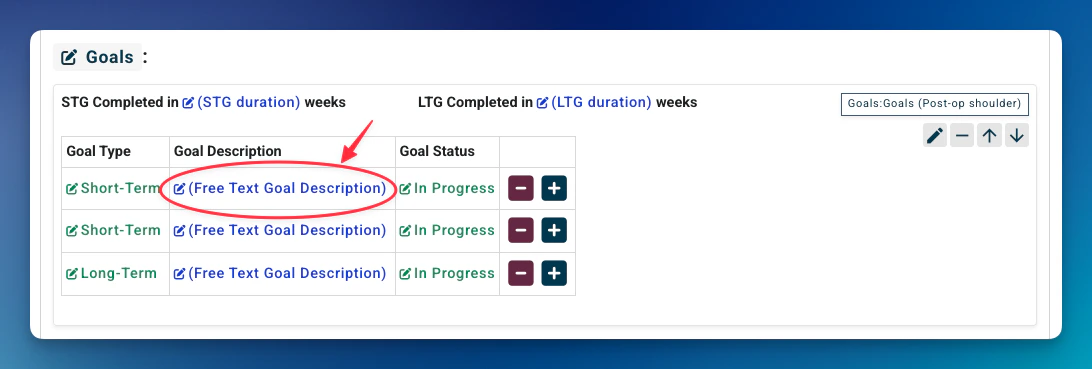 *An example of a goal Fragment, with the goal description Selection circled*
***
## Critical Considerations Before Editing
Because templates are used system-wide and rely on the concept of **document inheritance** to pull forward information, any changes you make can have a broad impact. Before saving your edits, consider the following:
* **Template Settings:** Each template has a list of settings at the top, in a light gray box. When editing a template or its included Fragments, the content will be subject to the settings for the overall template. Confirm the settings before saving the template so that the content and the subsequent actions function as expected when used as a clinical document.
* **Clinician Impact:** Templates are visible to **all clinicians**. Your edits will immediately change everyone's documentation experience. Ensure the information you are adding is universally applicable or desired.
* **Document Inheritance:** To ensure data flows correctly from one note to the next (e.g., from an Initial Evaluation to a Daily Note), verify that all related template documents use the *exact same* Fragment for the section you are updating.
* **Fragment Name Changes:** If you change the name of a Fragment, the system treats it as creating a new, **forked version**. You must then manually update all templates that should use this new version to maintain correct inheritance.
* **Formatting Test:** Formatting (like bolding) may not display exactly as expected in the editor. Always test the final document output on the **Strata Sample** patient *after* saving but *before* using the template on a real patient.
\--
## Step-by-Step Guide to Editing a Fragment
1. **Navigate to the Fragment Library:**
* In the Top Blue Bar, go to **Settings**.
* Select **Fragment Library**.
*An example of a goal Fragment, with the goal description Selection circled*
***
## Critical Considerations Before Editing
Because templates are used system-wide and rely on the concept of **document inheritance** to pull forward information, any changes you make can have a broad impact. Before saving your edits, consider the following:
* **Template Settings:** Each template has a list of settings at the top, in a light gray box. When editing a template or its included Fragments, the content will be subject to the settings for the overall template. Confirm the settings before saving the template so that the content and the subsequent actions function as expected when used as a clinical document.
* **Clinician Impact:** Templates are visible to **all clinicians**. Your edits will immediately change everyone's documentation experience. Ensure the information you are adding is universally applicable or desired.
* **Document Inheritance:** To ensure data flows correctly from one note to the next (e.g., from an Initial Evaluation to a Daily Note), verify that all related template documents use the *exact same* Fragment for the section you are updating.
* **Fragment Name Changes:** If you change the name of a Fragment, the system treats it as creating a new, **forked version**. You must then manually update all templates that should use this new version to maintain correct inheritance.
* **Formatting Test:** Formatting (like bolding) may not display exactly as expected in the editor. Always test the final document output on the **Strata Sample** patient *after* saving but *before* using the template on a real patient.
\--
## Step-by-Step Guide to Editing a Fragment
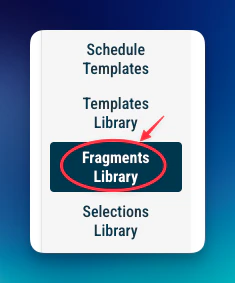
1. **Navigate to the Fragment Library:**
* In the Top Blue Bar, go to **Settings**.
* Select **Fragment Library**.
 2. **Locate the Fragment:**
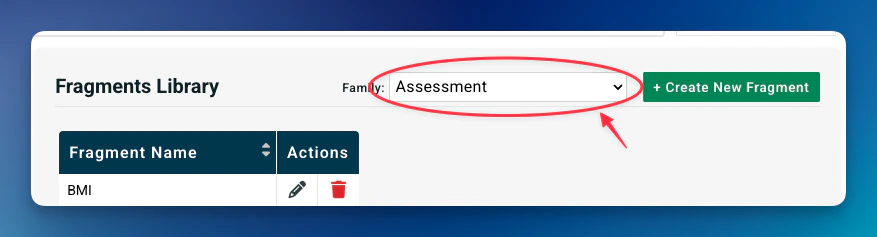
* Select the **Fragment Family** (e.g., "Goals Fragment Family") to narrow your search.
2. **Locate the Fragment:**
* Select the **Fragment Family** (e.g., "Goals Fragment Family") to narrow your search.
 **Tip:** To determine the name of a fragment used in a specific template, view the template and look for the blue-outlined box on the right side which displays the Fragment Name.
* Select the specific fragment you wish to edit (e.g., "Goals Table Free Text").
3. **Open the Editor:**
* Click the **pencil icon** to open the Fragment editor.
4. **Select Editing Mode:**
* **Text Editing Mode:** Select this to edit the actual static text displayed in the fragment.
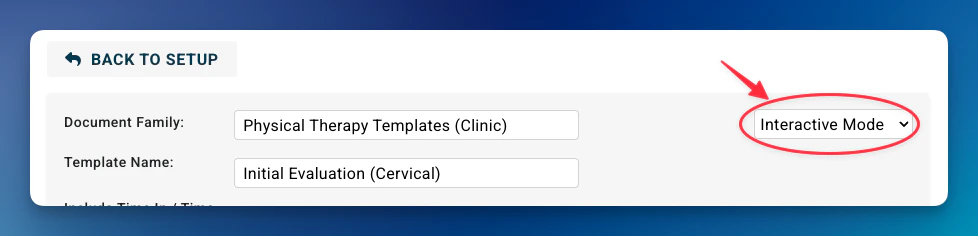
* **Interactive Mode:** Select this to edit the way Selections (the interactive text fields) function or to pre-fill their content. *This is the most common mode for adding default content.*
**Tip:** To determine the name of a fragment used in a specific template, view the template and look for the blue-outlined box on the right side which displays the Fragment Name.
* Select the specific fragment you wish to edit (e.g., "Goals Table Free Text").
3. **Open the Editor:**
* Click the **pencil icon** to open the Fragment editor.
4. **Select Editing Mode:**
* **Text Editing Mode:** Select this to edit the actual static text displayed in the fragment.
* **Interactive Mode:** Select this to edit the way Selections (the interactive text fields) function or to pre-fill their content. *This is the most common mode for adding default content.*
 5. **Edit the Selection (in Interactive Mode):**
* Click the specific **Selection** you want to update (e.g., the Free Text Goal Description).
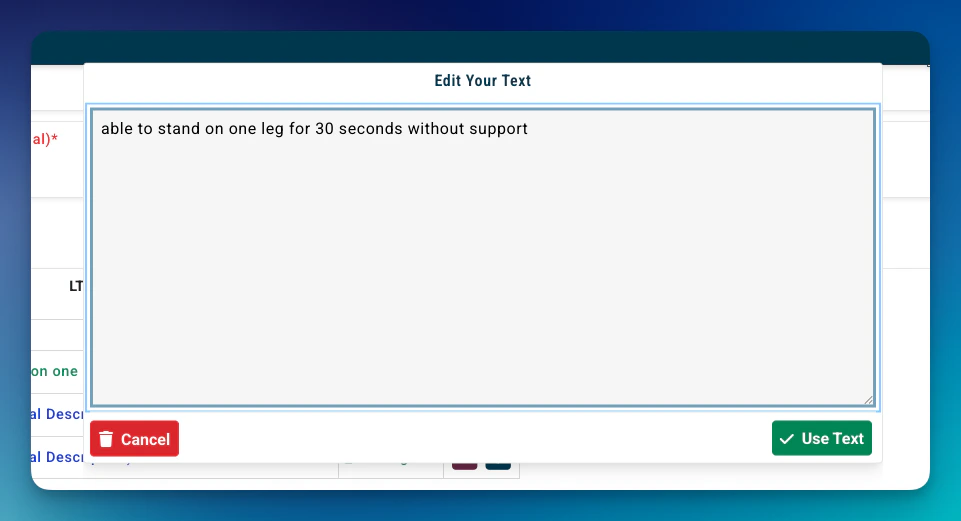
* A pop-up will appear. Type in the text you want pre-filled (e.g., “able to stand on one leg for 30 seconds without support”) or select the pre-defined option (e.g., setting the Goal Type as “Short Term”).
* Click **“Use Text”** or **“OK”** depending upon the pop-up type.
5. **Edit the Selection (in Interactive Mode):**
* Click the specific **Selection** you want to update (e.g., the Free Text Goal Description).
* A pop-up will appear. Type in the text you want pre-filled (e.g., “able to stand on one leg for 30 seconds without support”) or select the pre-defined option (e.g., setting the Goal Type as “Short Term”).
* Click **“Use Text”** or **“OK”** depending upon the pop-up type.
 6. **Save Your Changes:**
* Click the green **“Save Document”** button at the bottom of the screen.
Every template that uses this Fragment will now automatically display the new, pre-filled information, significantly reducing repetitive typing for clinicians.
6. **Save Your Changes:**
* Click the green **“Save Document”** button at the bottom of the screen.
Every template that uses this Fragment will now automatically display the new, pre-filled information, significantly reducing repetitive typing for clinicians.