> ## Documentation Index
> Fetch the complete documentation index at: https://docs.stratapt.com/llms.txt
> Use this file to discover all available pages before exploring further.
# Collect a Patient Payment
> How to collect and record patient payments in StrataEMR, including copays, outstanding balances, and manual payments.
Patients may owe a copay, a balance from a previous visit, or both. StrataEMR surfaces this information in two places at check-in and gives you a payment screen to process the collection — either through Authorize.net or manually for cash, check, or card.
## Where You'll See Payment Is Due
### On the Schedule
When you open a visit on the schedule by clicking the pencil icon, you'll see two amounts:
* **Collect** — what to collect for today's visit (the copay or coinsurance)
* **Balance** — the patient's total outstanding account balance across all dates of service
This is the natural moment to flag a payment when a patient arrives. When you move their status from **Scheduled** to **Arrived**, both amounts are visible so you can address them before the visit begins.
### On the Patient's Case
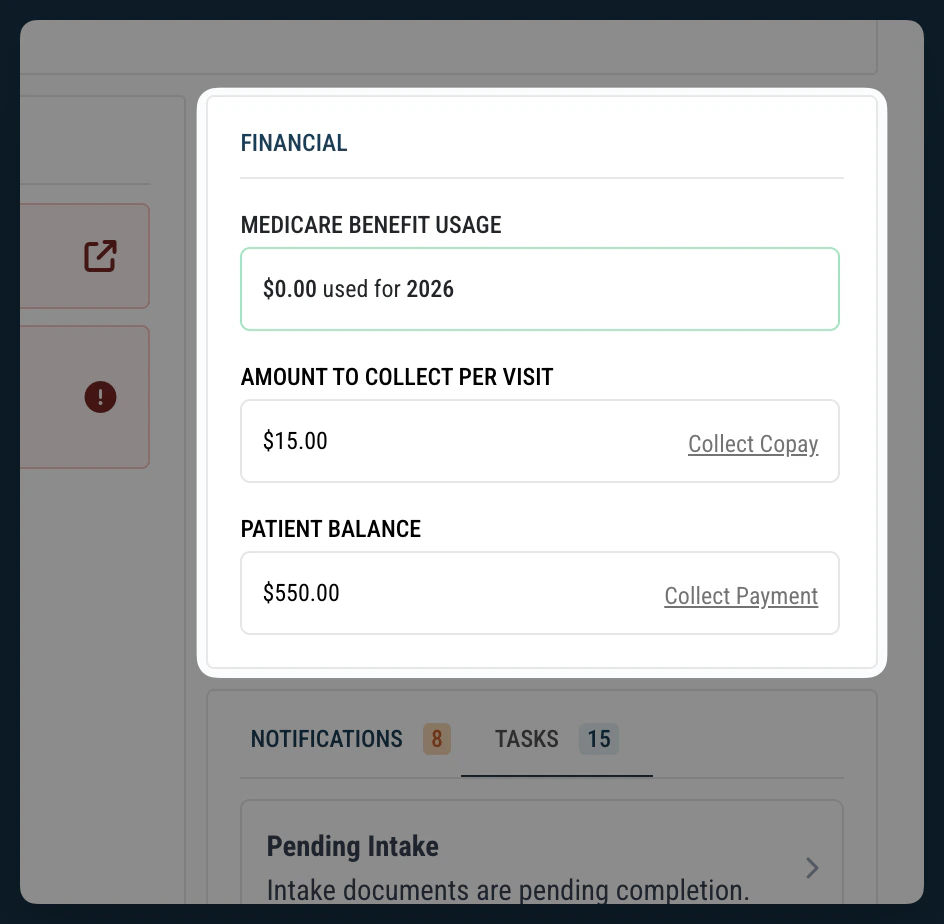
When you're inside a patient's case, the **Financial** card in the right sidebar shows the same two figures:
* **Amount to Collect Per Visit** with a **Collect Copay** link
* **Patient Balance** with a **Collect Payment** link
Both links take you directly to the payment screen.
The sidebar **Notifications** tab may also show a **Current Patient Balance Due** alert with a link to the payment screen, and the **Tasks** tab may show a task for an uncollected payment. When you've collected the payment, mark that task complete.
 ### From the Financial Menu
From anywhere inside a patient's case, you can hover over **Financial** in the patient menu bar and click **Payments**. This takes you to the same payment screen as the sidebar links.
***
## Collect a Payment via Authorize.net
Use this section if your practice processes card payments through the Authorize.net integration in StrataEMR.
1. Navigate to the payment screen using any of the paths above.
2. In the **Authorize.Net — Integrated Payment Processing** section, confirm or enter the **Payment Date** and **Service Date**.
3. Enter the **Amount** to collect.
4. Add a **Note** if needed (optional).
5. Set **Related to Invoice** to **Yes** if this payment is in response to a paper statement that StrataPT mailed to the patient. Otherwise leave it set to **No**.
6. Click **Add Credit Card**.
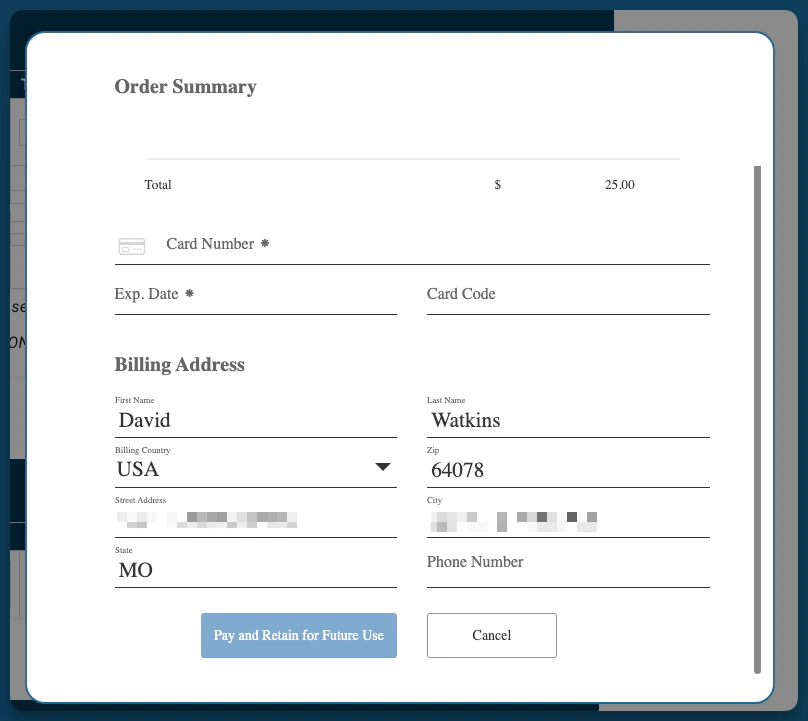
7. In the Order Summary popup, confirm the total and enter the patient's **Card Number**, **Exp. Date**, **Card Code**, and **Billing Address**.
8. Click **Pay and Retain for Future Use** to process the payment.
The payment posts to the patient's account automatically and appears in **Payment History** at the bottom of the screen.
### From the Financial Menu
From anywhere inside a patient's case, you can hover over **Financial** in the patient menu bar and click **Payments**. This takes you to the same payment screen as the sidebar links.
***
## Collect a Payment via Authorize.net
Use this section if your practice processes card payments through the Authorize.net integration in StrataEMR.
1. Navigate to the payment screen using any of the paths above.
2. In the **Authorize.Net — Integrated Payment Processing** section, confirm or enter the **Payment Date** and **Service Date**.
3. Enter the **Amount** to collect.
4. Add a **Note** if needed (optional).
5. Set **Related to Invoice** to **Yes** if this payment is in response to a paper statement that StrataPT mailed to the patient. Otherwise leave it set to **No**.
6. Click **Add Credit Card**.
7. In the Order Summary popup, confirm the total and enter the patient's **Card Number**, **Exp. Date**, **Card Code**, and **Billing Address**.
8. Click **Pay and Retain for Future Use** to process the payment.
The payment posts to the patient's account automatically and appears in **Payment History** at the bottom of the screen.
 ***
## Record a Manual Payment
Use this section for payments collected outside of Authorize.net — cash, check, or a card run through a separate terminal.
1. Navigate to the payment screen using any of the paths above.
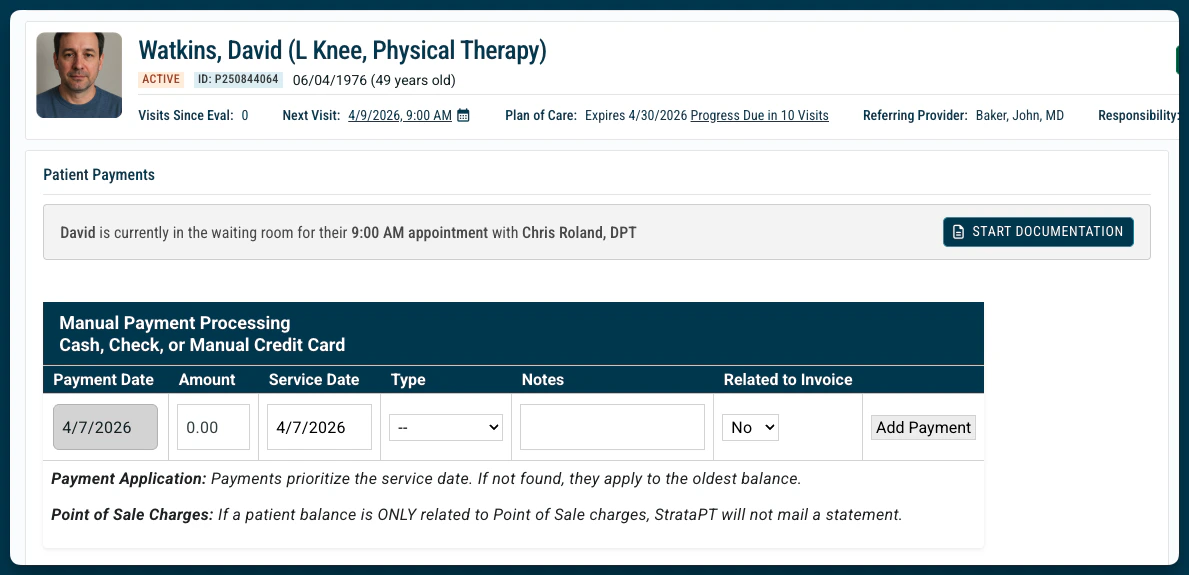
2. In the **Manual Payment Processing — Cash, Check, or Manual Credit Card** section, confirm or enter the **Payment Date** and **Service Date**.
3. Enter the **Amount** collected.
4. Select the **Type** that matches how payment was collected:
* **Cash**
* **Check**
* **Credit Card** (for cards processed on a separate terminal)
* **Other** — if you select Other, describe the payment method in the **Notes** field
5. Add a **Note** if needed. For checks, recording the check number here is good practice for reconciliation.
6. Set **Related to Invoice** to **Yes** if this payment is in response to a mailed statement. Otherwise leave it set to **No**.
7. Click **Add Payment**.
The payment is recorded and appears in **Payment History** at the bottom of the screen.
**Note:** Payments prioritize the service date you enter. If no matching service date is found, StrataEMR applies the payment to the oldest outstanding balance.
**Note:** If a patient's balance consists entirely of Point of Sale charges, StrataPT will not mail a statement for it. Keep this in mind when deciding whether to set Related to Invoice to Yes.
***
## Record a Manual Payment
Use this section for payments collected outside of Authorize.net — cash, check, or a card run through a separate terminal.
1. Navigate to the payment screen using any of the paths above.
2. In the **Manual Payment Processing — Cash, Check, or Manual Credit Card** section, confirm or enter the **Payment Date** and **Service Date**.
3. Enter the **Amount** collected.
4. Select the **Type** that matches how payment was collected:
* **Cash**
* **Check**
* **Credit Card** (for cards processed on a separate terminal)
* **Other** — if you select Other, describe the payment method in the **Notes** field
5. Add a **Note** if needed. For checks, recording the check number here is good practice for reconciliation.
6. Set **Related to Invoice** to **Yes** if this payment is in response to a mailed statement. Otherwise leave it set to **No**.
7. Click **Add Payment**.
The payment is recorded and appears in **Payment History** at the bottom of the screen.
**Note:** Payments prioritize the service date you enter. If no matching service date is found, StrataEMR applies the payment to the oldest outstanding balance.
**Note:** If a patient's balance consists entirely of Point of Sale charges, StrataPT will not mail a statement for it. Keep this in mind when deciding whether to set Related to Invoice to Yes.
 ***
## Review Payment History
The **Payment History** section at the bottom of the payment screen shows all payments recorded for the patient — date, amount, service date, payment type, notes, and whether it was related to an invoice. You can edit or delete a payment record here if a correction is needed.
***
## Related
* [How the Recommended Collection Amount Works](/documentation/billing/recommended-amount) — How StrataEMR estimates the copay and coinsurance amounts shown at check-in.
* [Copay, Coinsurance, and Deductible](/guides/billing/copay-coinsurance-deductible) — What each type of patient responsibility means and how it's calculated.
***
## Review Payment History
The **Payment History** section at the bottom of the payment screen shows all payments recorded for the patient — date, amount, service date, payment type, notes, and whether it was related to an invoice. You can edit or delete a payment record here if a correction is needed.
***
## Related
* [How the Recommended Collection Amount Works](/documentation/billing/recommended-amount) — How StrataEMR estimates the copay and coinsurance amounts shown at check-in.
* [Copay, Coinsurance, and Deductible](/guides/billing/copay-coinsurance-deductible) — What each type of patient responsibility means and how it's calculated.