> ## Documentation Index
> Fetch the complete documentation index at: https://docs.stratapt.com/llms.txt
> Use this file to discover all available pages before exploring further.
# Move, Swap, or Replace a Policy
> Reposition a patient's insurance policies between primary, secondary, and tertiary slots without manually expiring policies or re-entering information.
StrataEMR's Policy Move and Replace feature lets you change which insurance occupies the primary, secondary, or tertiary position on a patient's case — in seconds, without contacting support, and without manually expiring or recreating policies.
All the sequencing happens automatically in the background.
***
## Navigate to the Policies Page
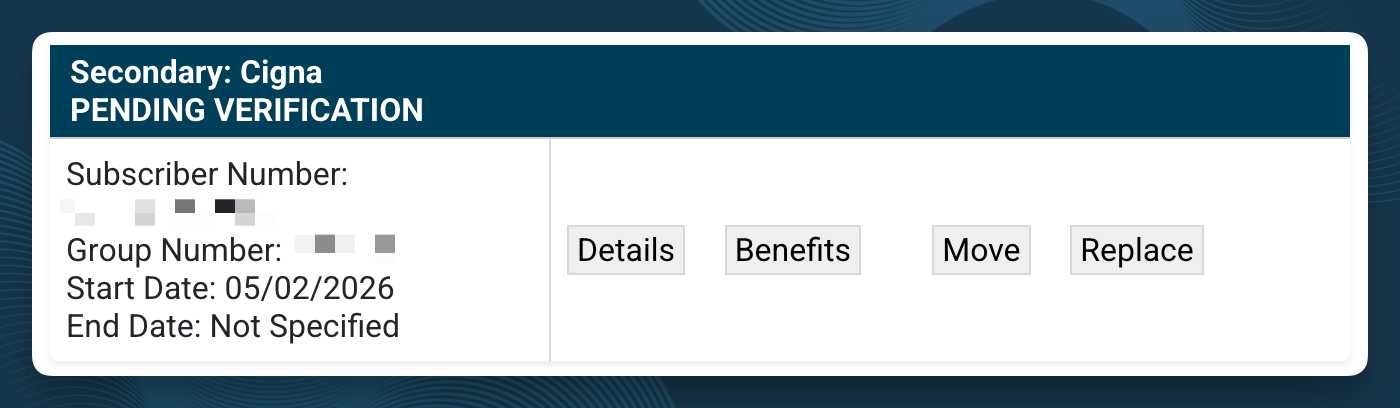
Navigate to Policies: **Patient Menu Bar > Patient Info > Policies**
All three actions (Move, Swap, and Replace) are available directly from the Policies page on a patient's case.
 ***
## Choose the Right Action
Three actions are available, depending on your situation:
The target position is empty. You're shifting an existing policy from one slot to a vacant one. For example, moving a secondary policy up to primary after a patient's primary insurance ends.
Both positions have active policies and you need to switch their order. For example, a patient's secondary insurance has become their primary, and vice versa. StrataEMR handles this through the Move button. When the target slot is already occupied, the system detects this and offers to swap the two policies.
A patient switched insurance carriers and you need to put a brand-new policy into an existing slot. This follows the standard Add a Policy flow, with one key difference: the coverage start date you enter for the new policy automatically expires the current policy the day before.
***
## Move a Policy to an Empty Slot
Use this when the destination position has no active policy currently in it.
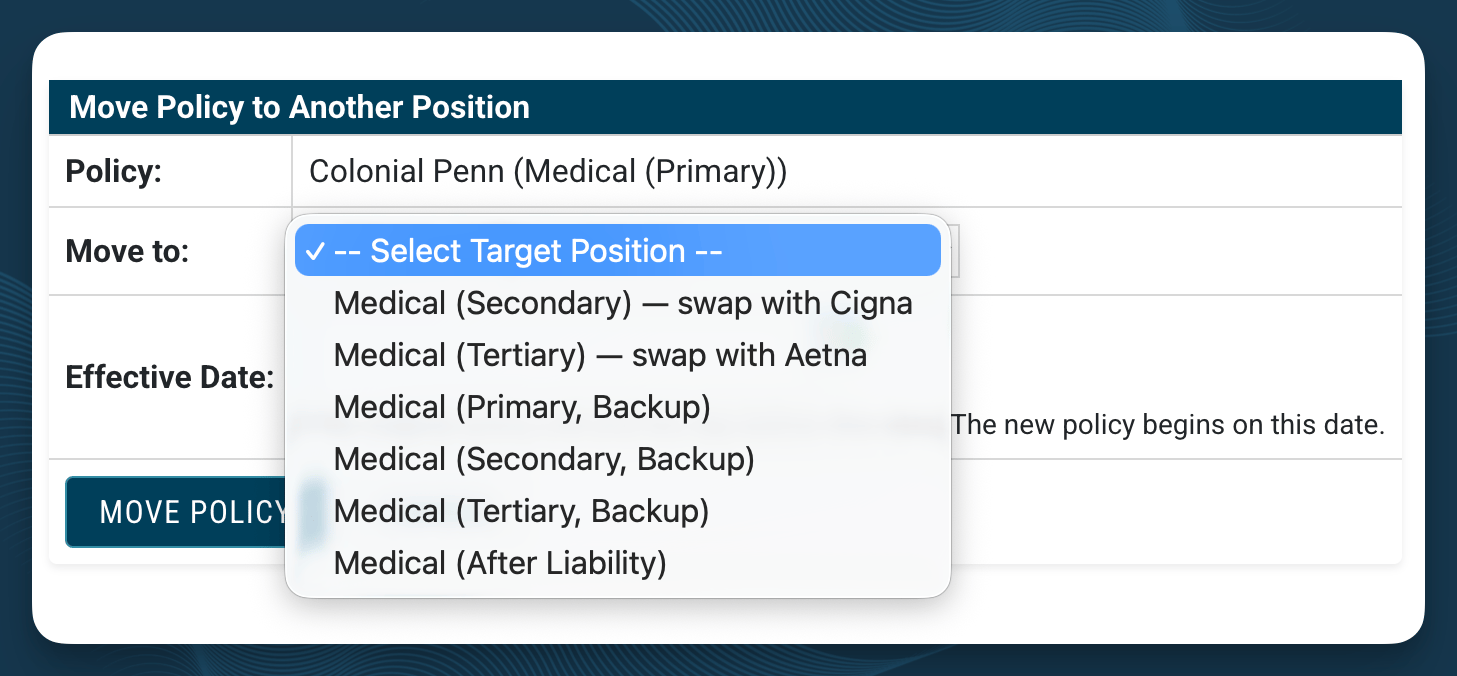
1. Locate the policy you want to move on the Policies page.
2. Click **Move** on that policy row.
3. Select the target position: Primary, Secondary, or Tertiary.
4. Enter the **effective date.** This is the date the policy begins in its new position.
5. Confirm the move.
StrataEMR automatically expires the policy in its original position the day before the effective date you entered. It then copies the policy, including its benefits and authorizations, into the target slot.
***
## Choose the Right Action
Three actions are available, depending on your situation:
The target position is empty. You're shifting an existing policy from one slot to a vacant one. For example, moving a secondary policy up to primary after a patient's primary insurance ends.
Both positions have active policies and you need to switch their order. For example, a patient's secondary insurance has become their primary, and vice versa. StrataEMR handles this through the Move button. When the target slot is already occupied, the system detects this and offers to swap the two policies.
A patient switched insurance carriers and you need to put a brand-new policy into an existing slot. This follows the standard Add a Policy flow, with one key difference: the coverage start date you enter for the new policy automatically expires the current policy the day before.
***
## Move a Policy to an Empty Slot
Use this when the destination position has no active policy currently in it.
1. Locate the policy you want to move on the Policies page.
2. Click **Move** on that policy row.
3. Select the target position: Primary, Secondary, or Tertiary.
4. Enter the **effective date.** This is the date the policy begins in its new position.
5. Confirm the move.
StrataEMR automatically expires the policy in its original position the day before the effective date you entered. It then copies the policy, including its benefits and authorizations, into the target slot.
 **Effective date is required.** The date you enter determines when the policy officially takes the new position. The original slot's policy is expired the day before this date. Choose this date carefully, it affects billing continuity.
***
## Swap Two Policies
Use this when both positions have active policies and you need to reverse their order.
1. Locate either policy you want to reorder on the Policies page.
2. Click **Move** on that policy row.
3. Select the target position. If a policy is already in that slot, StrataEMR recognizes this and presents the option to **swap** the two policies.
4. Enter the **effective date** for the swap.
5. Confirm the swap.
Both policies are moved simultaneously. Benefits and authorizations associated with each position are copied into the new slot. Neither policy needs to be manually expired first, StrataEMR handles the sequencing.
***
## Replace a Policy with a New One
Use this when a patient has switched insurers and you need to put a new plan into an existing position.
1. Locate the policy you want to replace on the Policies page.
2. Click **Replace** on that policy row.
3. Complete the new policy form. This follows the same steps as [adding a new policy](/documentation/patients/policies/add-a-policy).
4. Set the **coverage start date** for the new policy. This date also triggers the expiration of the current policy. StrataEMR expires the existing policy the day before this date.
5. Save the new policy.
The current policy is automatically expired. The new policy takes its place in the same position.
**Effective date is required.** The date you enter determines when the policy officially takes the new position. The original slot's policy is expired the day before this date. Choose this date carefully, it affects billing continuity.
***
## Swap Two Policies
Use this when both positions have active policies and you need to reverse their order.
1. Locate either policy you want to reorder on the Policies page.
2. Click **Move** on that policy row.
3. Select the target position. If a policy is already in that slot, StrataEMR recognizes this and presents the option to **swap** the two policies.
4. Enter the **effective date** for the swap.
5. Confirm the swap.
Both policies are moved simultaneously. Benefits and authorizations associated with each position are copied into the new slot. Neither policy needs to be manually expired first, StrataEMR handles the sequencing.
***
## Replace a Policy with a New One
Use this when a patient has switched insurers and you need to put a new plan into an existing position.
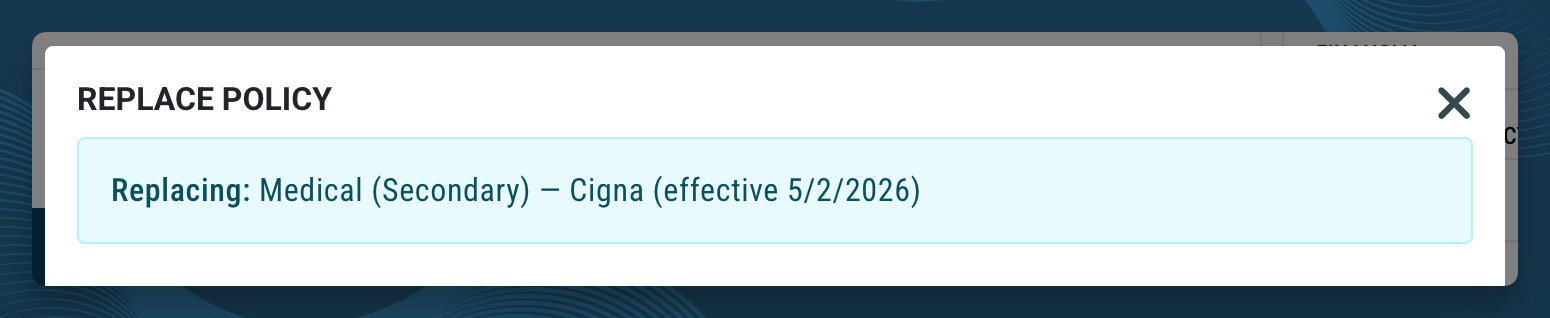
1. Locate the policy you want to replace on the Policies page.
2. Click **Replace** on that policy row.
3. Complete the new policy form. This follows the same steps as [adding a new policy](/documentation/patients/policies/add-a-policy).
4. Set the **coverage start date** for the new policy. This date also triggers the expiration of the current policy. StrataEMR expires the existing policy the day before this date.
5. Save the new policy.
The current policy is automatically expired. The new policy takes its place in the same position.
 **Review benefits and authorizations after replacing.** Because you're entering a new policy from a different insurance carrier, benefits and authorization details should be reviewed and updated to reflect the new plan's terms after saving.
***
## What Happens in the Background
When you Move or Swap a policy, StrataEMR automatically:
* Expires the policy in its original position on the day before your effective date
* Copies the policy, including its benefits and authorizations, into the target slot
* Maintains billing order so existing claims in process are not disrupted
When you Replace a policy, StrataEMR automatically:
* Expires the existing policy the day before the new policy's coverage start date
* Creates the new policy in the same position with the information you entered
In both cases, you do not need to set expiration dates manually or re-enter subscriber information that was already on file.
***
## If a Move Is Blocked
StrataEMR protects against effective dates that fall before claims already submitted to a payer. If the date you enter would conflict with an already-billed date of service, the system will display an error message and prevent the move from going through.
**Do not attempt to work around this block.** This guardrail prevents changes that could disrupt billing for dates of service that have already been submitted to a payer. If you see this error, contact support before making any further changes.
If you receive this error, reach out through the **Get Help** area. The StrataEMR support team can help you identify a safe effective date or assist with any adjustments needed to protect billing integrity.
**Review benefits and authorizations after replacing.** Because you're entering a new policy from a different insurance carrier, benefits and authorization details should be reviewed and updated to reflect the new plan's terms after saving.
***
## What Happens in the Background
When you Move or Swap a policy, StrataEMR automatically:
* Expires the policy in its original position on the day before your effective date
* Copies the policy, including its benefits and authorizations, into the target slot
* Maintains billing order so existing claims in process are not disrupted
When you Replace a policy, StrataEMR automatically:
* Expires the existing policy the day before the new policy's coverage start date
* Creates the new policy in the same position with the information you entered
In both cases, you do not need to set expiration dates manually or re-enter subscriber information that was already on file.
***
## If a Move Is Blocked
StrataEMR protects against effective dates that fall before claims already submitted to a payer. If the date you enter would conflict with an already-billed date of service, the system will display an error message and prevent the move from going through.
**Do not attempt to work around this block.** This guardrail prevents changes that could disrupt billing for dates of service that have already been submitted to a payer. If you see this error, contact support before making any further changes.
If you receive this error, reach out through the **Get Help** area. The StrataEMR support team can help you identify a safe effective date or assist with any adjustments needed to protect billing integrity.