

How the Onboarding Dashboard Works
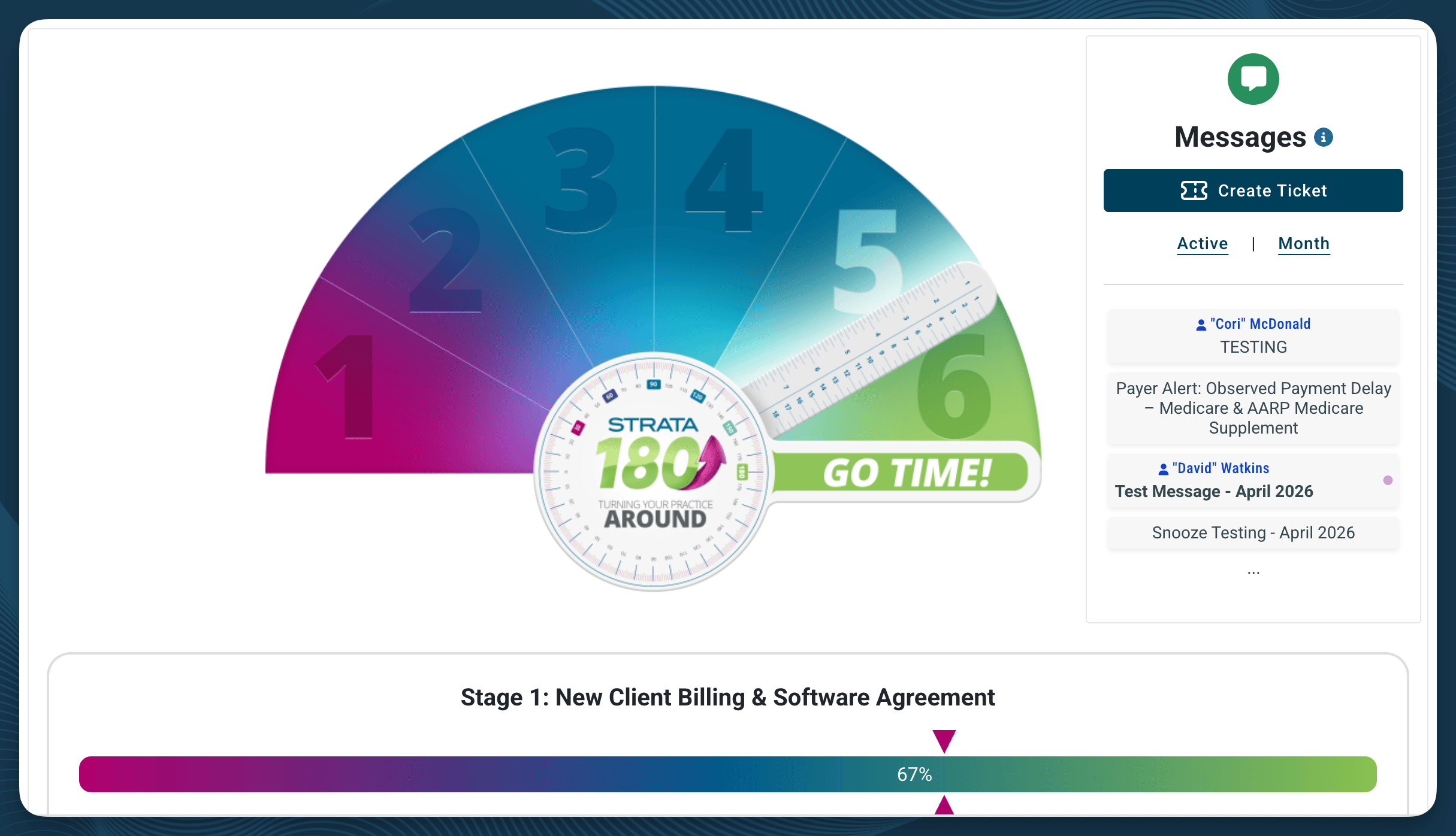
The onboarding dashboard is organized around a single progress tracker — the StrataPT180 gauge at the top of the page — with six stages beneath it. Each stage is a table of items, and each item falls into one of a few states:- Pending Client - something StrataPT needs from you: a signature, an upload, a completed form.
- Pending Strata - your onboarding team is working on it. No action needed from you.
- Complete - done.
The Six Stages
Your onboarding lead will walk you through this sequence and coordinate timing, but here’s what each stage covers: 1. New Client Billing & Software Agreement Review and sign your core agreements (software/RCM agreement, any Medicare-only service agreement that applies, ACH payment authorization), and get introduced to your onboarding team. This unlocks Stage 2. 2. Application & Supporting Documents This is where most of your setup information gets captured. You’ll complete the New Client Application and a handful of related forms (billing transition, fee schedule review, data migration election), and upload supporting documents: W-9, IRS Tax ID letter, voided check, practice logo, Medicare/Medicaid enrollment letters, state licenses, and current claim forms, among others. The details you provide here, practice information, identifiers, billing defaults, facility and staff details, are what StrataPT uses to build out your organization, facilities, and user accounts in the next stage. See Setting Up Your Organization, Configuring Your Facilities, and Adding Users and Roles for what that information covers. 3. Account Review StrataPT builds your EMR account from what you submitted in Stage 2 - organization setup, facility setup, staff setup, insurance file setup, and your billing rate. Most of this stage is Pending Strata; you’re not expected to configure this yourself. If you want to see what’s being reviewed, the linked setup pages above walk through what each of those settings means. 4. Clearinghouse EDI/ERA Setup StrataPT initiates your clearinghouse connection and payer enrollments (Medicare, Medicaid, Railroad Medicare, commercial payers). Some enrollments require your signature on an upload — those will show as Pending Client. 5. Account Finalization Your account manager kick-off call, credential issuance, and a 30-day check-in after go-live. The stage ends in GO TIME - the point where your account transitions to full production. See Going Live.Data Migration
Data migration — verifying that patient demographics, insurance details, and referrer information transferred correctly from your current EMR — is initiated through the Data Migration Election and Data Migration Review Form in Stage 2, using the current-EMR credentials you provide there. See Migrating Your Data for full details on what transfers and how the process works.What the Onboarding Dashboard Provides
The onboarding dashboard is your home base during the setup period. It’s intentionally limited to keep the focus on the tasks that need to happen before go-live. From the onboarding dashboard, you can:- View and track your onboarding progress
- Access organization settings (practice info, identifiers, billing defaults)
- Access facility settings (locations, schedules, provider assignments)
- Create and manage user accounts
- Deliver credentials for your current EMR (for data migration)
- Review migrated data as it becomes available
- Access training materials and resources
What’s Not Available During Onboarding
Certain features are locked until your account transitions to full production at go-live. This is by design. These features depend on having your configuration complete and your data migrated before they’re useful. If you see something you expect to have access to but don’t, check with your onboarding lead before assuming something is wrong. It may be intentionally locked until a later onboarding phase.Navigating the Dashboard
Setup Tasks Overview
The onboarding dashboard guides you through the configuration tasks that need to happen before go-live. These tasks are covered in detail in the pages that follow, but here’s the high-level sequence: 1. Set up your organization Configure your practice-level information: practice name, identifiers (NPI, Tax ID), and billing defaults. This is the foundation that everything else builds on. Setting Up Your Organization 2. Configure your facilities Add your practice locations, set operating hours, and assign providers to facilities. Multi-location practices will repeat this for each site. Configuring Your Facilities 3. Add users and roles Create accounts for your staff and assign role-appropriate permissions so each team member has access to what they need. Adding Users and Roles 4. Review migrated data Once the onboarding team completes your data migration, verify that patient demographics, insurance details, and referrer information transferred accurately. Migrating Your Data 5. Go live When configuration is complete, data is verified, and training is done, your account transitions to full production. Going Live Your onboarding lead will walk you through this sequence and coordinate timing. You don’t need to figure out the order or dependencies on your own.Credential Delivery
One of the first things you’ll do in the Onboarding Dashboard is provide login credentials to your current EMR. The onboarding team uses these to log into your existing system and extract your patient, payer, and referrer data. See Migrating Your Data for full details on what transfers and how the migration process works.Getting Help During Onboarding
During the onboarding period, your primary support contact is your onboarding lead. If you have questions about the dashboard, your setup tasks, or anything else during this phase, reach out to them directly.Next step:
- Setting Up Your Organization — Configure your practice-level information.