

Overview
StrataEMR does not have a dedicated superbill feature. If a patient needs an itemized billing statement to submit to their insurance for reimbursement — sometimes called a superbill — the correct approach is to set up a Financial Agreement on their policy and provide them with a downloaded PDF of their itemized charges. This workflow is most common for cash-pay patients and out-of-network arrangements where your practice does not bill the patient’s insurance directly on their behalf.Before You Begin
Have the following ready before you start:- The agreed rate per unit (e.g., 150.00)
- The eval rate, if it differs from the regular rate
- The date the arrangement takes effect
Step 1: Set Up a Financial Agreement
- Open the patient’s chart in StrataEMR.
- Navigate to the Policies section within the patient chart.
- Select Add Financial Agreement or click the existing Financial Agreement to edit it.
- Set the Arrangement Type to Flat Rate Per Unit.
- Complete the following fields:
- Click Save Financial Agreement.
- Confirm the Financial Agreement appears listed under the patient’s policy.
Note: The start date controls when StrataEMR begins applying the agreed rate to charges. Once saved, StrataEMR will apply the Financial Agreement automatically to this patient’s charges going forward.
Step 2: Download the Itemized Statement
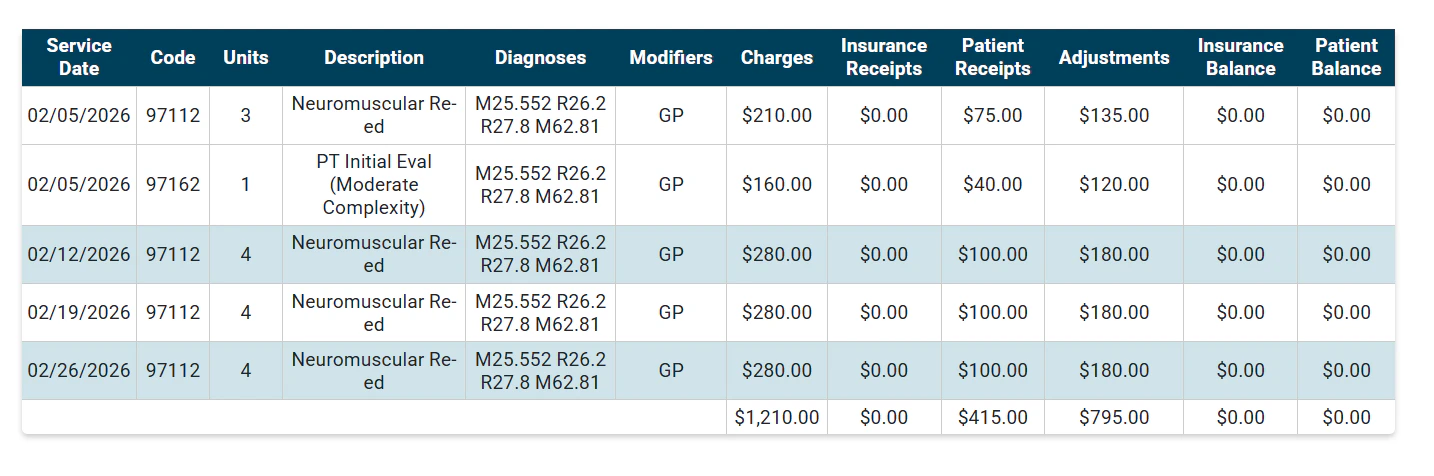
Once the Financial Agreement is in place and visits have been recorded, you can download the patient’s itemized charges as a PDF to give to them.- Open the patient’s chart.
- Navigate to the Financial section.
- Click Itemization of Charges.
- Click Download as PDF.
- Provide the PDF to the patient — by printing, emailing, or saving it for them to retrieve.
Important Notes
- Avoid overlapping Financial Agreement dates. If the patient already has an existing Financial Agreement, make sure the end date of the old one does not overlap with the start date of the new one.
- Verify rates match the patient’s agreement. Double-check the Regular Amount and Eval Amount before saving. Incorrect rates will affect charges immediately.
- The start date controls billing start. Charges on or after the start date will use the Financial Agreement rate. Earlier charges are unaffected.
Related
- Collecting and Recording Patient Payments — How to record a payment once a visit has been completed.
- How the Recommended Amount Works — How StrataEMR calculates the recommended amount when a Financial Agreement is in place.
- Understanding the Clarity Panel and Patient Responsibility — How to read a patient’s financial history after charges are applied.