

Before You Begin
Access to many reports within Practice Metrics requires Administrator-level access and visibility into practice financials. You may not have access to every report listed below.Run a Report
Navigate to Practice Metrics: Dashboard > Analytics column > Practice Metrics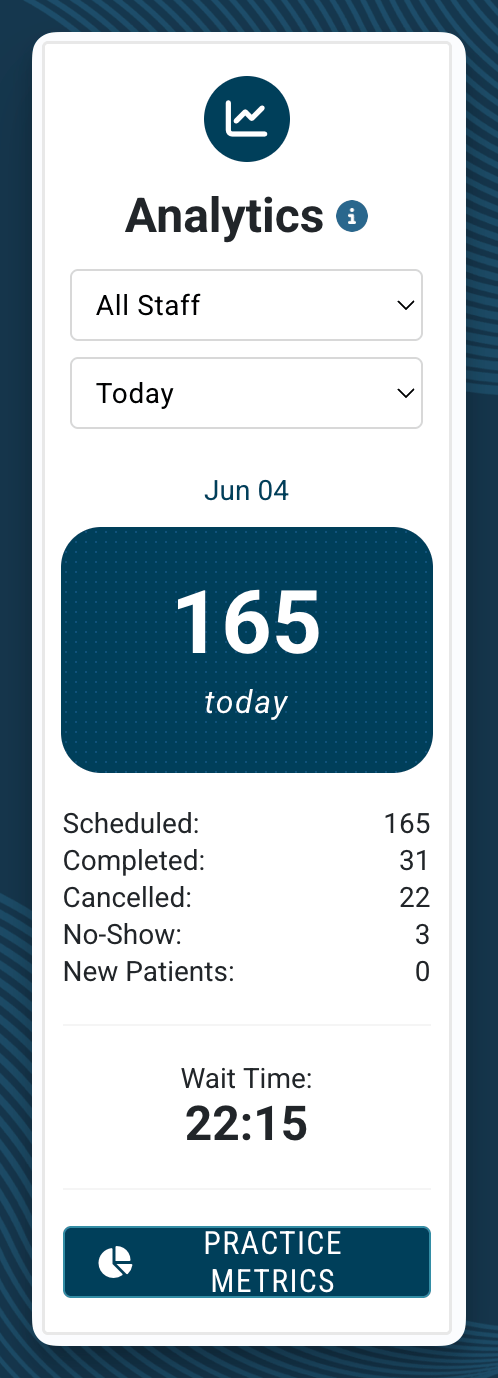
- Select the report name from the list, or click View All Reports.
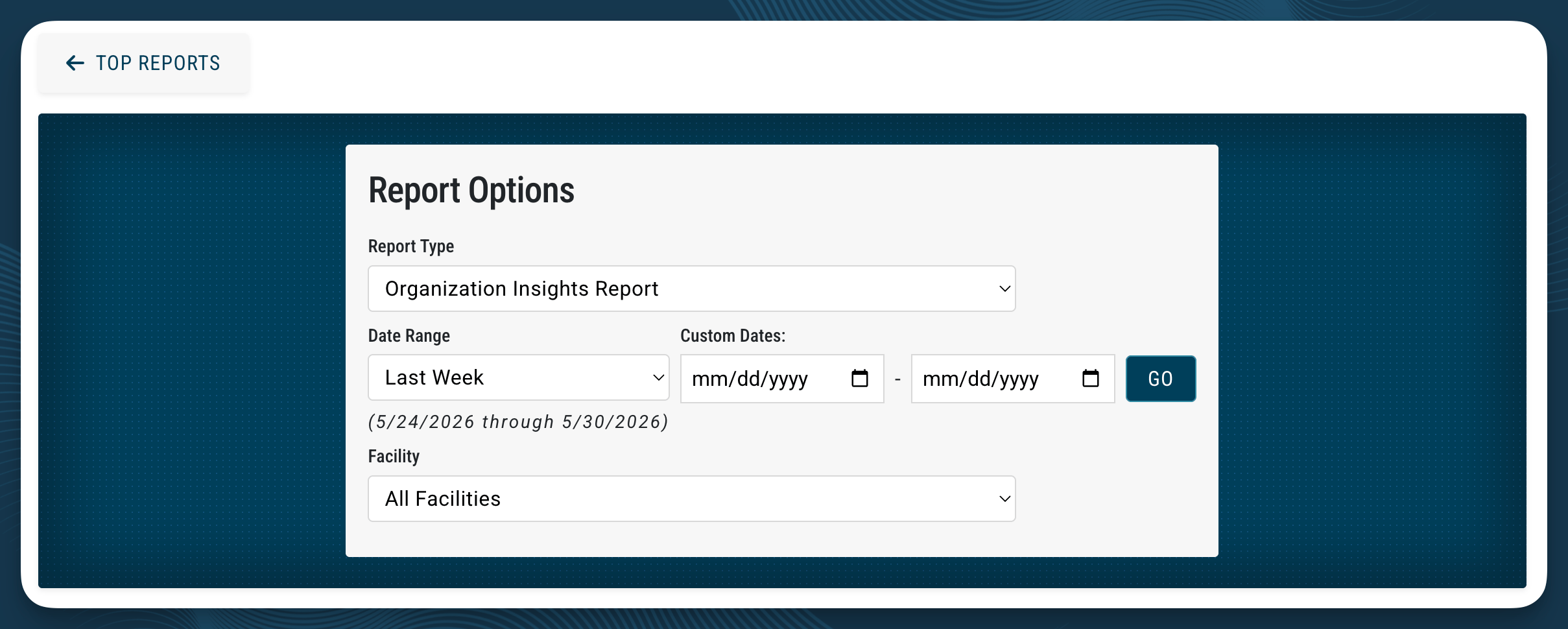
- Set your filters — most reports let you choose a date range, facility, and provider.
- Click Go. Results appear on screen.
- To export, click the Download button. Depending on the report, you may see options for PDF, CSV, or both.
Which Report for Which Question
Use this as a quick reference when you’re not sure where to start.How is the business performing overall?
How is the business performing overall?
Organization Insights Report — a snapshot of scheduled visits, billing, collections, and top CPT codes for any date range. Filterable by facility.
How much do we have in AR and what's driving it?
How much do we have in AR and what's driving it?
Accounts Receivable Report — drill into specific insurances with elevated AR to see which patients and dates are outstanding. Scroll to the bottom to see items pending client action.
How are my therapists performing against each other?
How are my therapists performing against each other?
Staff Productivity Report (by Service Date) — compare productivity by service date, units billed, and time with patients. Useful for identifying under- or over-billing.
What documents do my clinicians need to complete?
What documents do my clinicians need to complete?
Schedule Reconciliation Report — check the status of each clinician’s appointments for the week, including whether the document for each date of service has been created and completed.
What are we collecting per payer?
What are we collecting per payer?
Average Reimbursement Per Payer — shows your average reimbursement rate for your top payers. Helpful when renegotiating contracts — you can pull actual numbers to support your case.
Which CPT codes are we billing most and what's our rate?
Which CPT codes are we billing most and what's our rate?
Average Reimbursement Per Charge Code — breaks down reimbursement by CPT code for top payers. Use alongside the per-payer report for a complete picture.
Which claims are still pending?
Which claims are still pending?
Pending Charges Report — shows any dates of service still in a pending state, so you know which claims are about to be sent out by the StrataPT team.
What's the current patient balance status?
What's the current patient balance status?
Patient Balance Report — lists each patient with an open balance, their amount, and their financial status (past due, final notice). Use the final notice filter to identify accounts approaching collections.
What did we collect this week or month?
What did we collect this week or month?
Patient Payments by Date — shows patient payments collected within a given date range. For a full picture including insurance payments, use the Payment Detail by Date Report.
Who is referring patients to us and how often?
Who is referring patients to us and how often?
Referring Provider Summary Report — shows referral volume by provider, conversion rate, and last referral date.
How many visits did we have and what happened to them?
How many visits did we have and what happened to them?
Schedule Performance Report — shows billed visits, pending documents, evaluations, discharges, no-shows, and cancellations.
Understanding the Visit Summary vs. Organization Insights Discrepancy
A common question: “The number in the Visit Summary doesn’t match what I see in Organization Insights — which one is right?” Both can be correct — they measure different things.- Organization Insights (Schedule Insights section) counts scheduled appointments within the date range, including any appointment that appears on the calendar.
- Visit Totals Report and Staff Productivity Report count visits by service date as billed — meaning a visit only appears when a charge is associated with it.
Practice Dashboard 2.0 is a visual alternative to Organization Insights that includes graphs for annual reimbursement averages per payer and referral breakdowns. If you prefer charts over tables, try this report for executive-level overviews.
Tips for Getting the Most from Reports
Use the AR Report for RCM follow-up. The Accounts Receivable Report shows items “pending client action” at the bottom — this is your list of claims that need your team’s attention before they can move forward. Use Average Reimbursement Per Payer before contract renewals. Pull 6–12 months of data to see exactly what each payer is reimbursing per CPT code. You’ll have concrete numbers in hand for the negotiation. Use the Patient Balance Report to manage collections timing. Patients at “final notice” status have already received multiple balance alerts. Review this list before deciding which accounts to move to an external collections process. StrataEMR does not send accounts to collections automatically — that step is handled by your practice. Download the Patient Email Report for marketing outreach. To send a newsletter or promotional email, navigate to Practice Metrics > Patient Email List Report to export a list of patient contact information. Use that list in a separate marketing tool — do not use the Patient Engagement tools in StrataEMR for mass marketing sends.Related
- Understanding the Clarity Panel and Patient Responsibility — How to read a patient’s financial history after a claim is adjudicated.
- How the Recommended Amount Works — How StrataEMR calculates the suggested collection amount at time of service.
- Medicare Billing in StrataEMR — Medicare-specific billing rules and workflows.