

How It Works
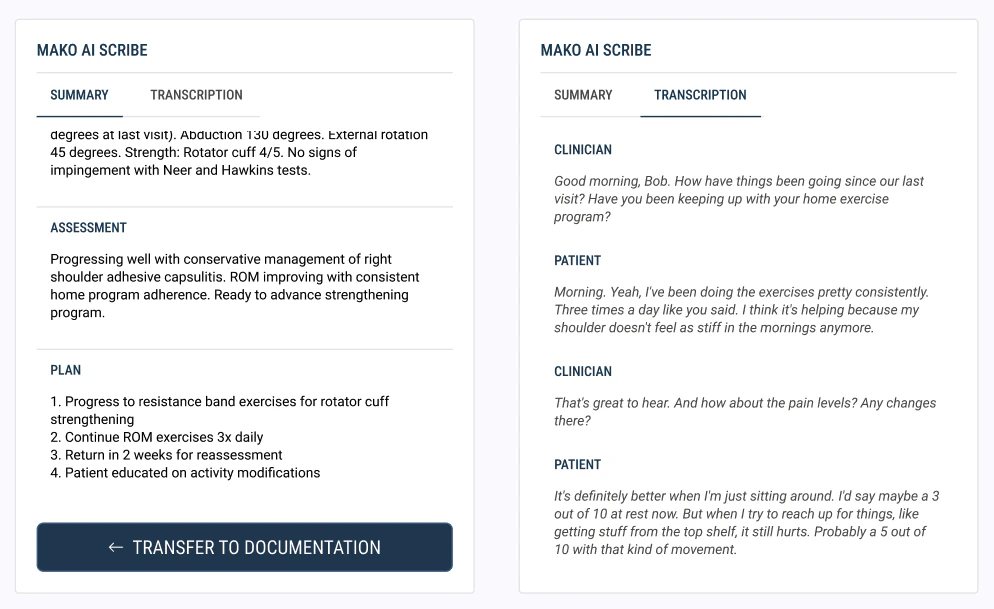
Mako AI Scribe records audio from your therapy session using your device’s microphone (built-in or external). When the session is complete and you stop the recording, the audio is securely uploaded and processed. Mako will provide two outputs: Summary Tab: A structured clinical summary organized into SOAP note sections:- Subjective: Patient-reported symptoms, history, and concerns discussed during the session
- Objective: Clinical observations, measurements, and findings verbalized during the encounter
- Assessment: Clinical interpretation, progress toward goals, and functional status
- Plan: Treatment recommendations, goals, and next steps
Transferring Content Into Your Note
Once processing is complete (typically a few minutes), you have two options for getting AI-generated content into your documentation:Option 2: Copy and Paste
Option 2: Copy and Paste
Getting Started
Requirements
- A laptop or tablet with a modern web browser (Chrome, Edge, or Safari recommended)
- A built-in microphone or an external wireless microphone
- Microphone access granted in your browser settings
Activation
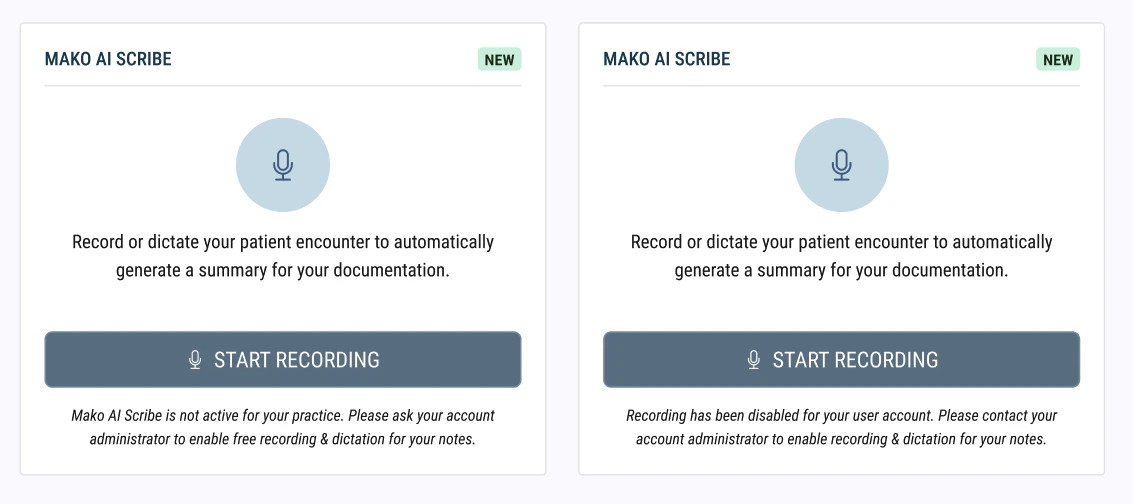
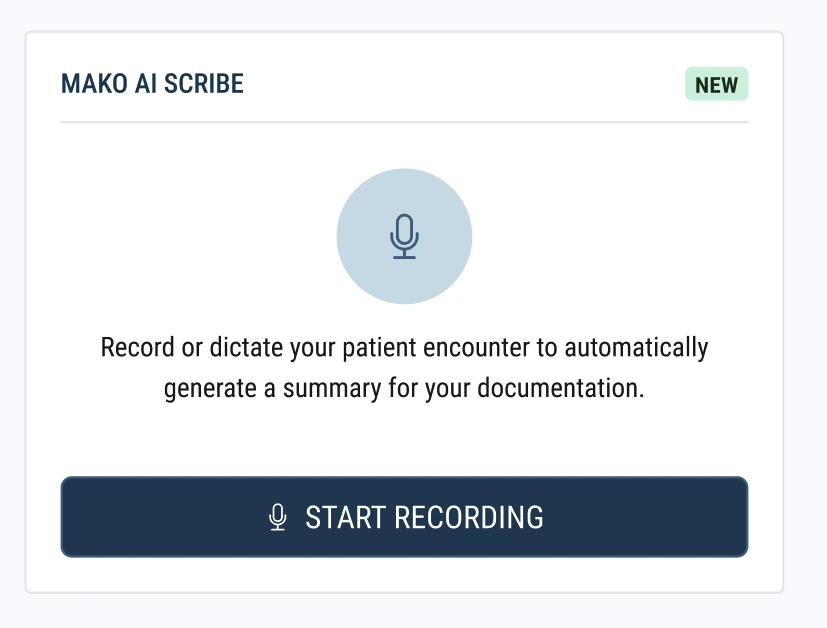
Mako AI Scribe must be activated for your account by a member of the StrataPT team. You will see the Mako AI Scribe card on your note in one of two pre-activation states:- “Mako AI Scribe is not active for your practice.” Your practice has not yet been enabled. Ask your account administrator to request activation from StrataPT.
- “Recording has been disabled for your user account.” Your practice is enabled, but your individual user account needs to be activated. Contact your account administrator to enable recording and dictation for your notes.
Granting Microphone Access
When you start your first recording, your browser will ask for permission to access your microphone. You must allow this for Mako AI Scribe to function. If you accidentally deny the request, you can update your browser’s microphone permissions in its settings.Recording a Session
Step-by-Step
Start a Recording
Confirm Patient Consent for Recording
Set Microphone Permissions
Continue your Session
Complete your recording
Review your Summary and Transcript
Transfer to your Note
Review
Tips for a Successful Recording
Verbalize your clinical observations. Mako can only document what it hears. Speak your measurements, observations, and findings aloud during the session. For example, say “left knee flexion is 130 degrees” rather than silently noting it. Record the full encounter. Start recording when the session begins and stop when it ends. Recording the entire session in one continuous take produces better results than starting and stopping multiple times. Be aware of your environment. In a quiet, private room, your device’s built-in microphone will generally work well within about 4-6 feet. In open gym settings or multi-therapist environments, an external wireless microphone will significantly improve audio quality and reduce background noise. Use Pause when needed. If a sensitive conversation arises or you step away from the patient, click Pause and Resume when ready rather than stopping and restarting the recording.Hardware Recommendations
When Your Built-In Microphone Is Enough
If you primarily treat patients in a private room or quiet environment and your device is within a few feet of the conversation, your laptop or tablet’s built-in microphone should work well.When to Use an External Microphone
An external wireless microphone is strongly recommended if:- You work in an open gym or multi-therapist setting
- There is background noise, music, or cross-talk from adjacent sessions
- You move around the treatment area during sessions
- Your device is more than a few feet from the patient
Recommended Microphone
The Hollyland Lark M2S Combo is a wireless lavalier microphone that clips to your clothing and connects to your device via a USB receiver. It provides strong noise isolation and is the most commonly recommended option among clinicians using Mako AI Scribe. Any similar microphone will also work.Patient Consent and Recording Disclosure
Recording therapy sessions involves patient consent considerations that vary by state. The Recording Consent Required dialog within Mako AI Scribe reminds clinicians of their responsibility before every recording session, but your practice should also establish broader consent practices. Regardless of your state’s specific requirements, we strongly recommend the following:Recommended Consent Practices
- Update your intake forms. Add a recording consent section to your Consent and Policies intake template. Recommended language is provided below in both English and Spanish.
- Post visible signage. Place a notice at your front desk informing patients that sessions may be recorded for clinical documentation purposes.
- Verbally disclose recording. At the start of each recorded session, briefly let the patient know the session will be recorded to support clinical documentation.
- Always allow opt-out. If a patient declines recording, respect their decision. Declining recording does not affect their care. Consider creating a case notification to flag patients who have opted out so all clinicians on their care team are aware.
- Document acknowledgment. Keep a record that the patient was informed and did not object (or provided written consent, depending on your state’s requirements).
Recommended Intake Language
Add the following to your Consent and Policies intake template below the “Digital Images and Videos” section:State-by-State Considerations
Some states require all-party consent for recording private conversations. Therapy sessions are generally treated as private conversations regardless of setting. All-party consent states (consent required from all parties): California, Connecticut, Delaware, Florida, Illinois, Maryland, Massachusetts, Montana, Nevada, New Hampshire, Oregon, Pennsylvania, Vermont, Washington One-party consent states (disclosure and opt-out strongly recommended): All remaining states and Washington, D.C.HIPAA Considerations
All recordings and transcripts generated by Mako AI Scribe stored securely and treated as Protected Health Information (PHI). They are accessible only to authorized members of the care team and subject to all applicable HIPAA requirements.- Never reuse recordings or transcripts beyond clinical documentation without separate patient consent
- Treat both audio files and text transcripts as PHI
- Follow your existing HIPAA policies for storage, access, and retention
Best Practices from Early Adopters
Since launching Mako AI Scribe with our first group of customers, we have gathered real-world feedback that can help you get the most out of the feature.Start with Initial Evaluations and Re-Evaluations
These visit types involve the most narrative documentation and benefit the most from AI assistance. They are typically conducted in private rooms, which also provides better recording conditions. Once you are comfortable, expand to daily notes and other visit types.Use It as a Companion Tool
Think of Mako AI Scribe as a first draft, not a finished product. The AI-generated content gives you a strong starting point, especially for subjective sections where it performs best. Review everything, edit where needed, and continue to complete required template fields and objective measurements manually.Don’t Abandon Manual Documentation Skills
The AI is a productivity tool. Continue to develop and maintain your clinical documentation skills. Use the AI output as a reference and supplement, not a crutch.Focus on Subjective Sections First
Clinicians consistently report that the subjective section is where Mako AI Scribe adds the most value. Patient-reported symptoms, history, and the flow of conversation are captured well. Objective measurements, complex data structures, and medication lists still benefit from manual entry.Copy Specific Sections, Not Entire Summaries
Rather than transferring everything at once, many clinicians find it most effective to review each SOAP section individually and transfer or copy only the portions that are accurate and relevant to their note.Frequently Asked Questions
How long does processing take after I click Stop & Submit?
How long does processing take after I click Stop & Submit?
What devices and browsers are supported?
What devices and browsers are supported?
Can I use Mako AI Scribe on my phone?
Can I use Mako AI Scribe on my phone?
What happens if my browser crashes or my device goes to sleep during a recording?
What happens if my browser crashes or my device goes to sleep during a recording?
Can I record more than one session per note?
Can I record more than one session per note?
Is there a limit on recording length?
Is there a limit on recording length?
What if a patient declines to be recorded?
What if a patient declines to be recorded?
Will the AI-generated content automatically fill in my note template?
Will the AI-generated content automatically fill in my note template?
How accurate is the AI-generated content?
How accurate is the AI-generated content?
Is there an additional cost for Mako AI Scribe?
Is there an additional cost for Mako AI Scribe?
What does the Recording Consent Required dialog mean?
What does the Recording Consent Required dialog mean?
Can I see both the summary and the full transcript?
Can I see both the summary and the full transcript?