

A request, not a booking. Patients ask for an appointment. They do not pick a time slot or see your calendar. Your team confirms the visit after you check benefits and review the referral.
Check Intake Manager regularly. New registrations appear in Intake Manager. StrataEMR does not send an alert or create a task when one arrives, so build a habit of checking Intake Manager for new cases.
Access: StrataPT activates Online Patient Registration for your practice. Once active, all staff who work in Intake Manager can review incoming registrations.
How It Works
A new patient opens your registration link and moves through six short steps. They complete the flow on their own device, and most patients use a phone.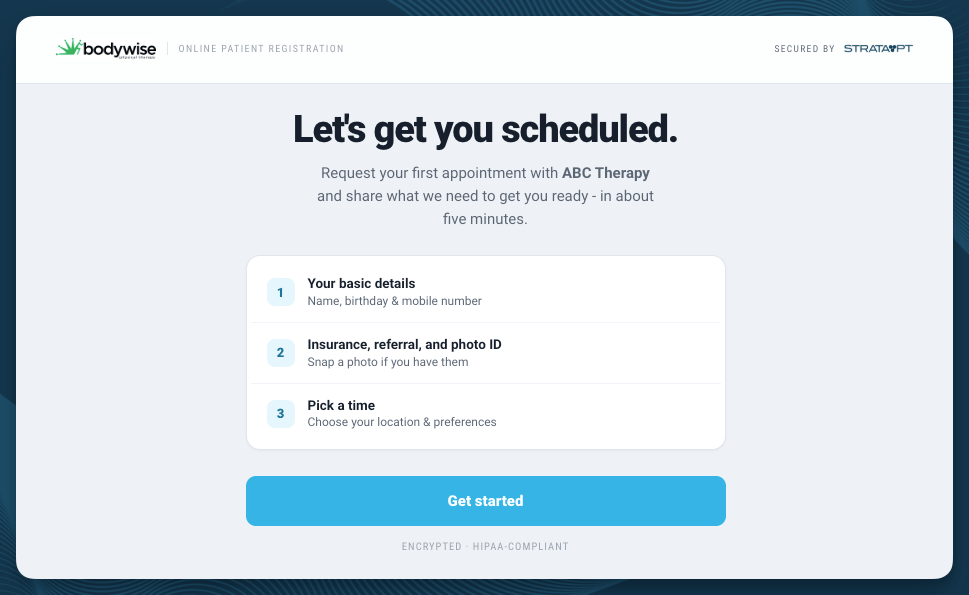
- Welcome. A page with your practice’s name introduces the process.
- Your Information. The patient enters their legal name, date of birth, and mobile phone number. StrataEMR texts a 6-digit code to verify the number before it creates anything.
- Referral. The patient scans or uploads their referral. If they do not have one yet, they choose Not yet. The flow tells them your practice can request it for them.
- Insurance. The patient captures the front and back of their insurance card, or chooses self-pay. They can add secondary and tertiary policies.
- Request Appointment. The patient chooses a location, then selects First available or the days of the week that work for them.
- Review and Confirm. The patient checks a summary of what they submitted and reads a “what to expect” message from your practice.
What Your Practice Receives
Each completed registration gives your team the following:- A new case in Intake Manager. The case has an Intake status and a status description of New Online Patient Registration. It carries an online-registered source tag, so you can tell these leads apart from faxed or manual referrals.
- Filed documents. The referral, insurance card images, and any other uploads go into the patient’s Stored Documents.
- A contact note. The note records the registration date, the facility the patient chose, and their day preference.
Requirements and Activation
Online Patient Registration is not on by default. To create a link to share with patients:- Ask for activation. Your account administrator asks StrataPT to turn on the feature for your practice. A member of the StrataPT team enables it, and your registration link then appears in your Organization settings.
- Review your facility list. Patients can choose any facility that is active in your account. Ask StrataPT to hide closed or inactive locations so patients cannot select them. Hiding a facility keeps its billing history intact.
- Publish your link. Add the link to your website once your account is ready.
Find and Share Your Registration Link
Your registration link is on your Organization settings page.
- Navigate to Organization Settings: Menu Bar > Settings > Organization
- Find your registration link on the page. It appears only after StrataPT enables the feature.
- Copy the link.
- Send the link to your website administrator and ask them to add it to a button or menu item, such as New Patient Registration.
- Ask your website administrator to set the link to open in a new browser tab. Your website stays open while the patient registers.
Note: Each practice has one link. StrataEMR sends every registration to your organization, and the patient’s facility choice is logged on their case and in the Intake Manager.
Review a New Online Registration
When a patient registers, your front desk follows the same steps as for any new case in Intake Manager.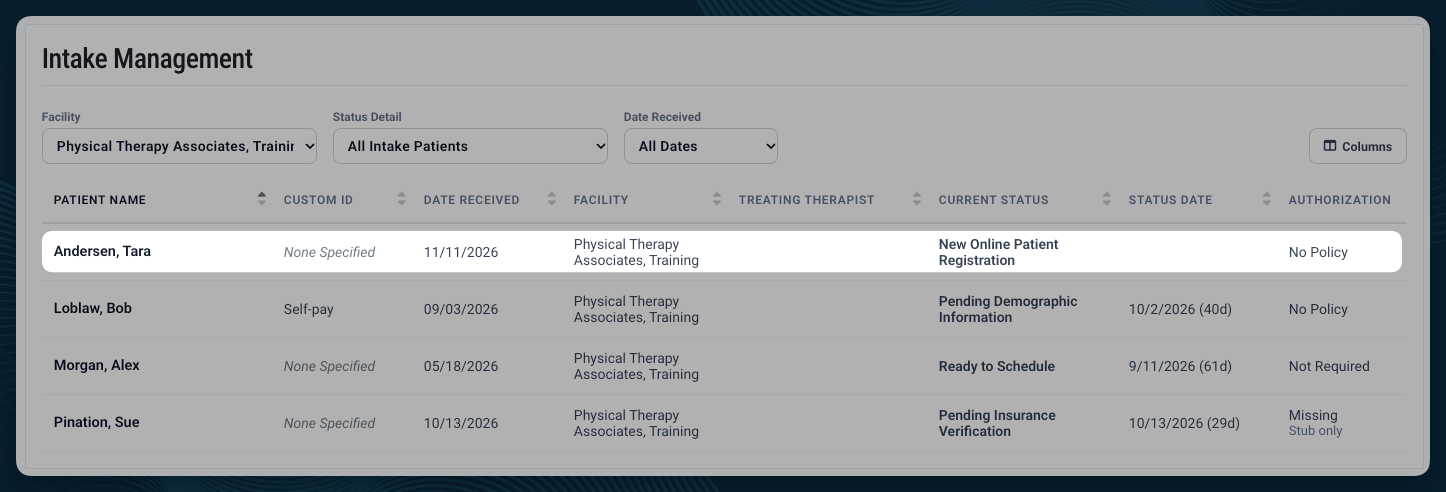
1
Open Intake Manager
Hover over the person icon in the Patient Menu Bar and select Intake Manager. Check it throughout the day for new registrations.
2
Find the registration
Look for a case with the status description New Online Patient Registration. Select the case to open it.
3
Review what the patient submitted
Check the demographics and the contact note, which lists the facility and day preference. Open Stored Documents to review the referral and insurance card images.
4
Verify benefits and authorization
Confirm the patient’s coverage and check whether the visit needs an authorization. If the patient chose Not yet for the referral, request it from the referring provider.
5
Contact the patient and schedule
Reach out to confirm an appointment that fits the patient’s day preference and your schedule.
6
Move the case forward
The case becomes Active when you schedule the patient. You can also change the status yourself from Intake Manager.
Frequently Asked Questions
Can patients pick their own appointment time?
Can patients pick their own appointment time?
No. Patients request an appointment and share the days that work for them. Before a patient joins your schedule, you need the referral, a benefits check, and sometimes an authorization. Your team confirms the slot that works.
What if the patient does not have a referral?
What if the patient does not have a referral?
The patient can continue without one. The flow tells them your practice can request a referral on their behalf, so you do not lose the registration.
What if the patient does not have insurance?
What if the patient does not have insurance?
The patient chooses self-pay during the Insurance step.
How will my team know a new registration arrived?
How will my team know a new registration arrived?
New registrations appear in Intake Manager. StrataEMR does not send an alert, so ask your front desk to check Intake Manager regularly. This also keeps every new case, whatever its source, in one place.
Where do the patient's uploads go?
Where do the patient's uploads go?
StrataEMR files the referral, insurance card images, and other uploads in the new case’s Stored Documents. Nobody has to re-type or re-upload them.
How does StrataEMR prevent spam registrations?
How does StrataEMR prevent spam registrations?
The patient must enter the 6-digit code sent to their mobile phone before StrataEMR creates a case. A registration that does not clear the code never reaches your team.
Can I change the look of the registration pages?
Can I change the look of the registration pages?
Your practice’s logo appears on the registration experience. Other customization, such as brand colors, is not available.