

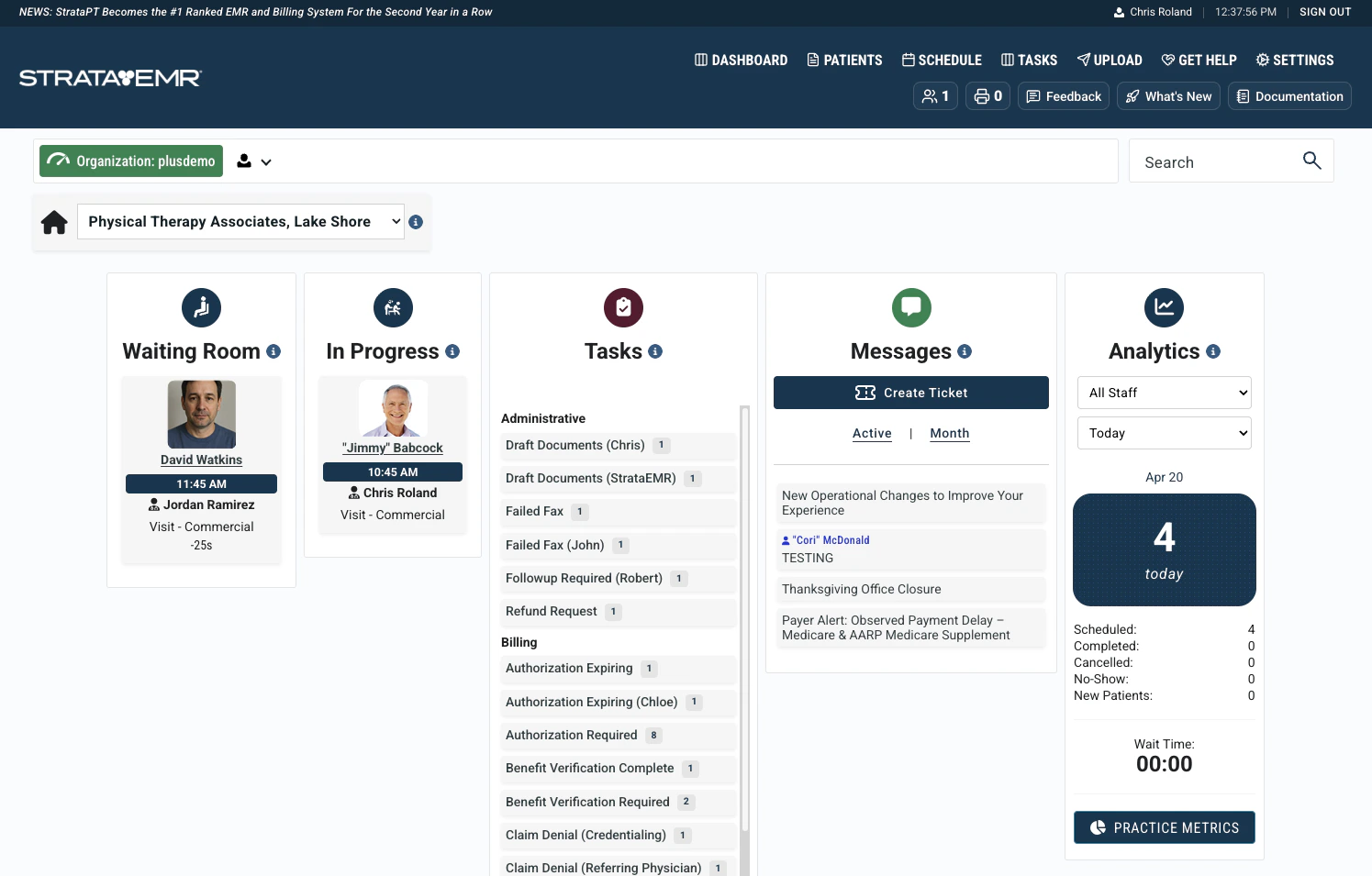
Access: All staff can view the dashboard. Messaging, analytics, and certain reports may be restricted by the Limit Messaging and Limit Financial Features permission modifiers.
Facility Selector
The facility dropdown in the top-left corner of the dashboard controls which location’s data is displayed. Selecting a different facility updates the Waiting Room, Tasks, and Analytics sections accordingly. Staff with the View Only Own Facilities Schedules modifier will only see facilities they are explicitly assigned to in the dropdown.Waiting Room & In Progress
The Waiting Room section shows patients in the Arrived/Waiting status at the selected facility. Patients move out of the Waiting Room row when their status changes, usually due to the automatic change to In Progress when a clinician clicks the Start Documentation button on the patient’s case. The patient count in the Waiting Room indicator also appears in the blue menu bar at the top of every page, so you can monitor it from anywhere in the system without returning to the dashboard. Patients can check in using the Kiosk Check-In feature from the schedule, or staff can manually update their status.Tasks
The Tasks section displays a summary of all pending tasks for the selected facility, grouped by Administrative, Billing, and Clinical categories. Clicking any task summary opens the detailed task list for that type. For day-to-day task management, the dedicated Tasks page (accessible from the blue menu bar) is recommended over the dashboard summary — it supports filtering by task type, category, payer, staff member, and facility, and filtered views can be bookmarked for quick access. See Task Workflow for the full list of task types and how they clear.Messages
The Messages section shows active Tickets between your practice and the StrataPT support team. Tickets are used for account manager communications, billing questions, and support requests. When creating a ticket about a specific patient, always link the patient account to the thread using the patient dropdown. If a patient has multiple accounts, select the specific account you are inquiring about.Analytics
The Analytics section provides a quick-facts view of scheduling performance for the current day, week, and month at the selected facility. Metrics can be filtered by staff member. Metrics displayed include:- Scheduled — Total appointments with a patient attached (across all statuses)
- Completed — Visits marked complete
- Cancellations / No-Shows — Appointments cancelled or missed
- New Patients — Initial evaluations completed
Blue Menu Bar Indicators
In addition to the dashboard sections, the blue menu bar at the top of every page shows two real-time indicators:- Waiting Room icon — Displays the current number of patients checked in across the selected facility
- Inbound Fax icon — Displays the number of unreviewed inbound faxes. Clicking it opens the Inbound Fax inbox.