Access: Any staff member with schedule access can activate Kiosk mode. No special permissions are required.
How Kiosk Check-In Works
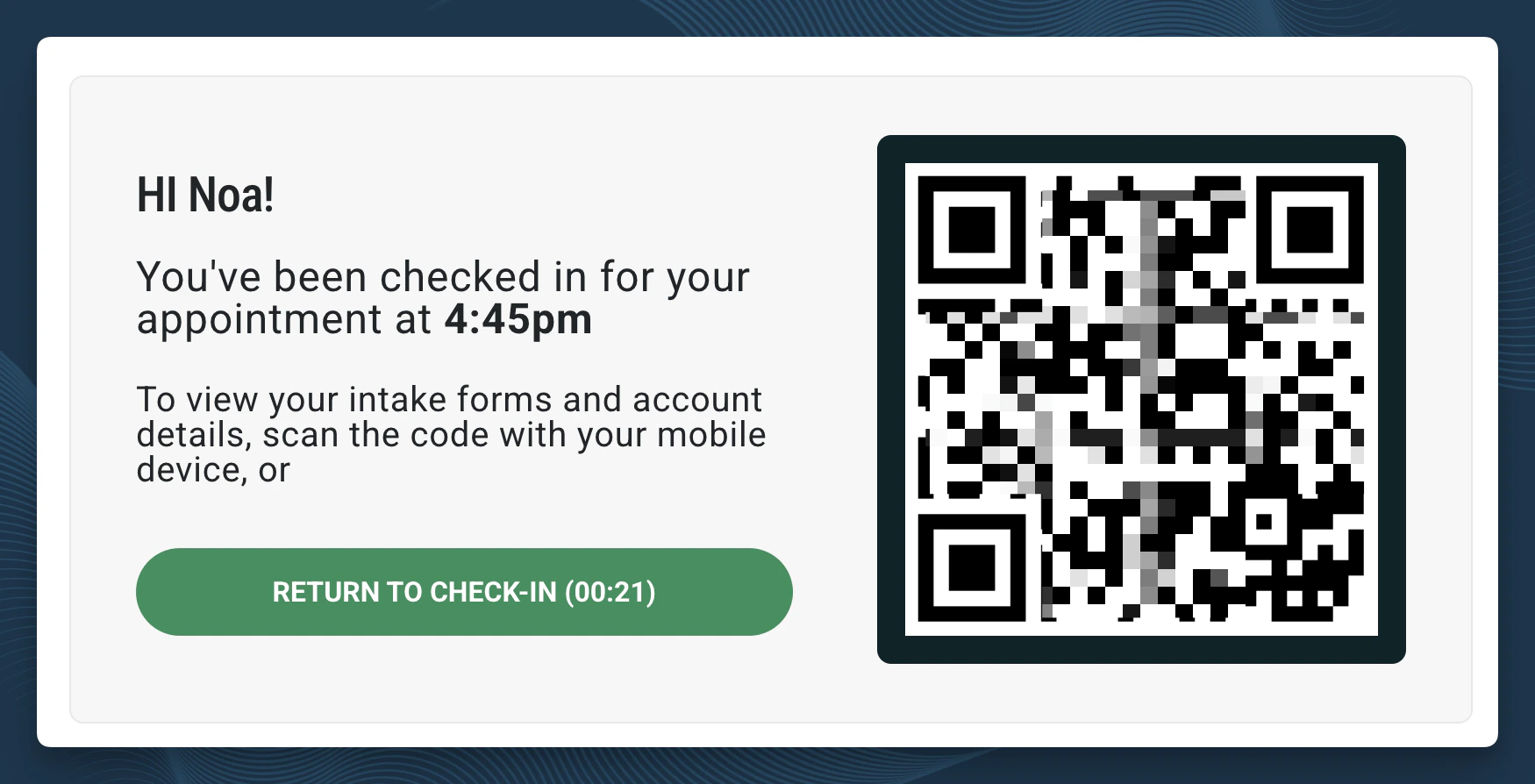
When you activate Kiosk mode from the Schedule, StrataEMR locks down access to the full EMR on that device. Patients see only the check-in interface. Your staff credentials and patient records stay protected. Once a patient checks in, their status on the Schedule automatically updates to Arrived and Waiting. No manual update needed. Patients then have the ability to view any incomplete forms and outstanding copays and patient responsibility within their Patient Portal. If your practice has multiple facilities, Kiosk mode applies only to patients scheduled at the facility tied to that device.Activate Kiosk Mode
- Open the Schedule from the blue Menu Bar.
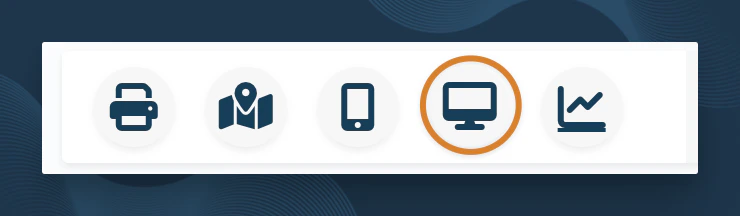
- Click the Kiosk View icon in the schedule toolbar. The device immediately enters Kiosk mode.
The Patient Check-In Experience
When a patient approaches the kiosk device, they see a TAP TO CHECK-IN button. Patients who prefer to use their own phone can scan the QR code displayed on screen instead. Both options lead to the same check-in flow.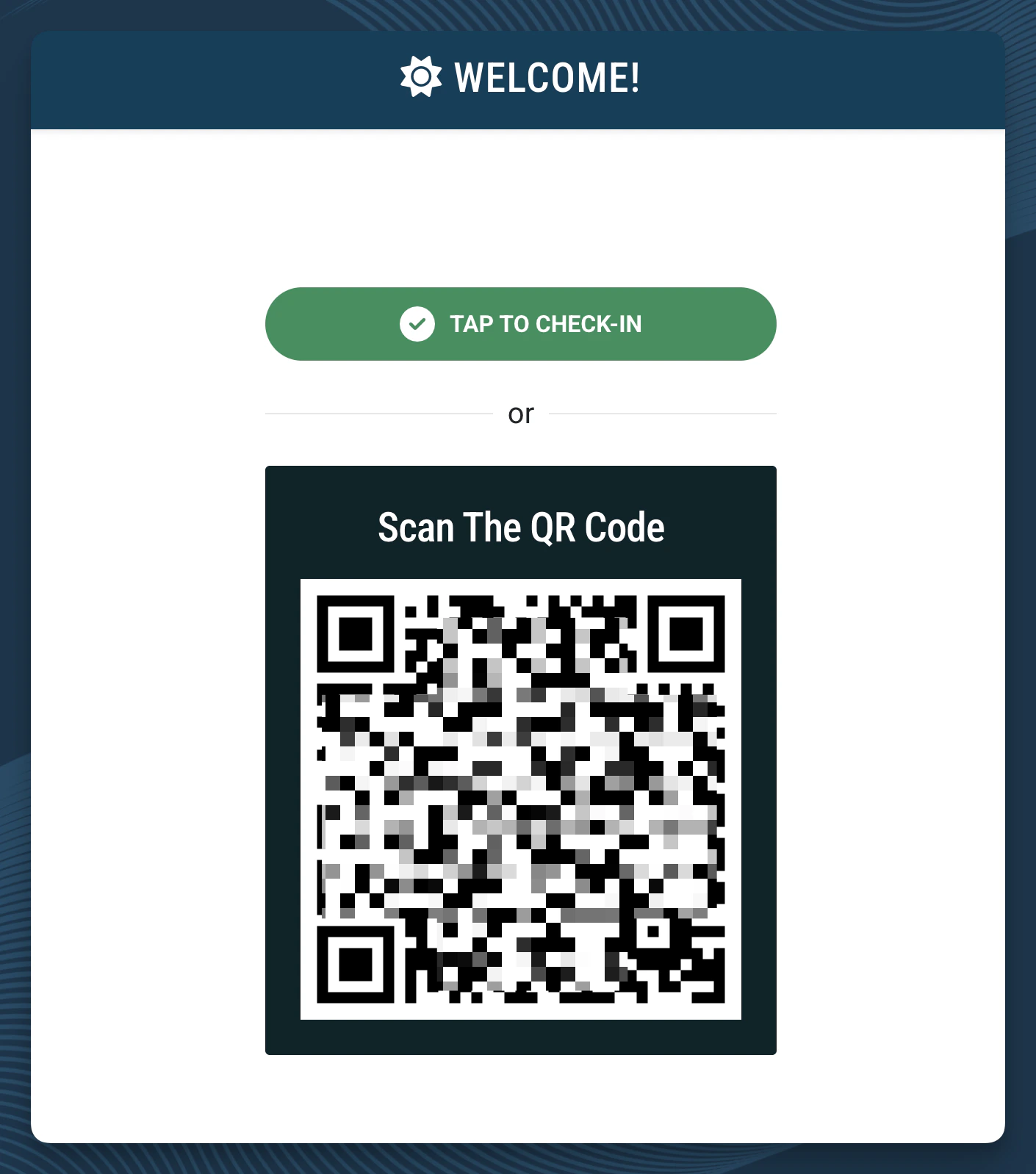
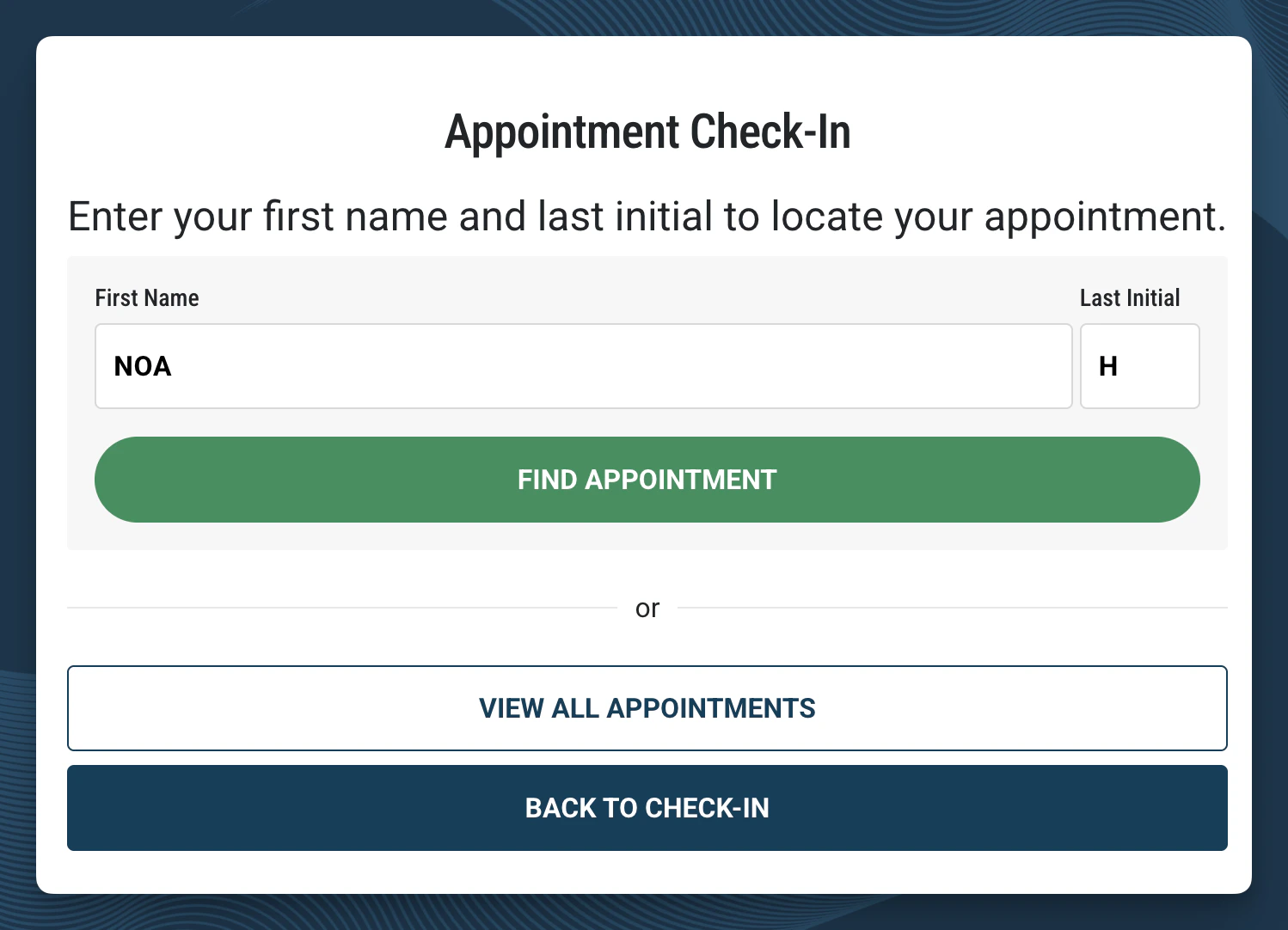
- Enter first name and last initial.
- Select the green FIND APPOINTMENT button.
Complete Intake Forms
Patients can complete queued intake forms (registration, health questionnaire, consent forms) directly from the check-in flow. On a shared kiosk device, they scan a QR code displayed after checking in to pull the forms up on their own phone. Patients who already checked in on their own device via QR code are taken straight to their forms with a direct link. Completed forms automatically write back to the patient’s demographics and case record in StrataEMR.