

Access: All staff can view inbound faxes and attach them to patient charts. Sending faxes from the Clinical Documents page requires Clinical Staff permissions or above. Therapy Directors can edit fax cover sheet templates.
Outbound Faxing
Sending a Stored or Clinical Document
Outbound faxing of documents is initiated from either the Faxing or Clinical Documents pages within a patient’s case.- Open the patient’s case and navigate to Patient Menu Bar > Documents > Clinical Documents to fax a clinical document or Patient Menu Bar > Documents > Faxing to fax either stored documents or a combination of clinical and stored documents.
- Check the box next to each document you want to fax.
- Click Fax All Checked Items at the top of the page.
- On the fax cover sheet, click Quick Select to auto-populate the referring physician’s information from the Case Info page.
- Confirm or adjust the destination fax number.
- Click Send Fax.
Faxing Required task: When a clinician completes an Initial Evaluation or another document with a Plan of Care, StrataEMR automatically creates a Faxing Required task on the dashboard. Completing this task by sending the fax converts it into a Pending Signature task.
How the Referring Provider Fax Number is Populated
StrataEMR pulls the destination fax number from the referring provider’s record, which is set on the patient’s Case Info page. When you use Quick Select on the fax cover sheet, this information populates automatically. If the referring provider’s fax number is missing or incorrect, update it on the referrer’s record before sending. You can also enter a fax number manually on the cover sheet for a one-time send.Checking Fax Status
After sending a fax, you can confirm whether it was delivered successfully from the patient’s Contact History page. Navigate to Patient Menu Bar > Tasks & Contact > Contact History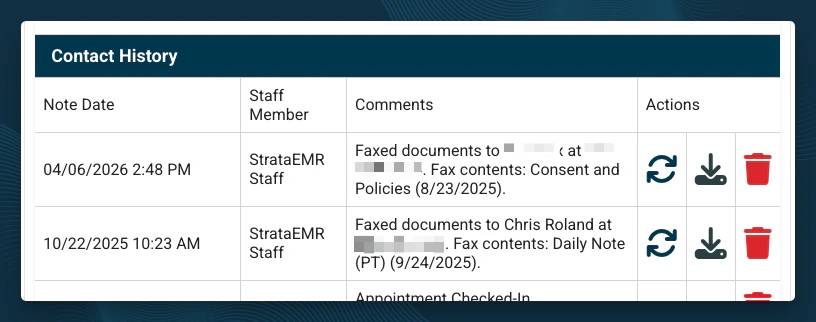
- Locate the fax entry in the list.
- Click the circle arrows icon (↻) next to the entry to refresh and load the current delivery status. The fax confirmation text opens, showing whether the fax was delivered, is still in progress, or failed.
- Click the download icon to download the fax confirmation page. The confirmation page displays the transmission result so you can verify the fax reached its destination before following up with the referring provider.
No failed fax task yet? If you just sent the fax and are checking immediately, the status may still show as in progress. Wait a few minutes and refresh again. If the fax ultimately fails, StrataEMR will create a Failed Fax task on your dashboard automatically.
Inbound Faxing
StrataEMR can provide each practice with a dedicated inbound fax number. This number appears on all outgoing fax cover sheets so the physician knows where to return the signed document.QR Code–Assisted Document Return
Every clinical document faxed from StrataEMR for signature includes a QR code on the signature page. When the physician signs and faxes the document back to your practice’s inbound fax number, StrataEMR reads the QR code automatically. The system then:- Attaches the returned document directly to the correct patient’s case as a Stored Document
- Clears any pending follow-up tasks associated with that fax
Follow-up tasks: When sending a fax, you can opt in to a follow-up reminder using the Followup dropdown on the fax cover sheet. If the signed document is returned and the QR code is successfully read, StrataEMR clears this task automatically. If the document is returned without a readable QR code, you will need to attach it manually and clear the task yourself.
Inbound Fax Queue
An inbound fax indicator in the top-right corner of your dashboard displays the number of faxes pending review. Click the fax inbox icon to open the inbound fax queue. This queue is used for faxes like physician referrals for treatment. From the fax inbox you can:- View received faxes in PDF format
- Attach each fax to the correct patient account manually using the patient dropdown.
Failed Faxes
How StrataEMR Handles Failures
When a fax fails, StrataEMR automatically retries the send multiple times. If the fax remains unreachable after three attempts, it stops retrying and creates a Failed Fax task on your dashboard.Resending a Failed Fax
- Find the Failed Fax task on your Tasks page or within the patient’s case.
- Open the task and click the Clinical Documents link.
- Check the box next to the failed document.
- Click Fax All Checked Items to resend.