

Access: All staff can view and manage the Waiting List.
Adding a Patient to the Waiting List
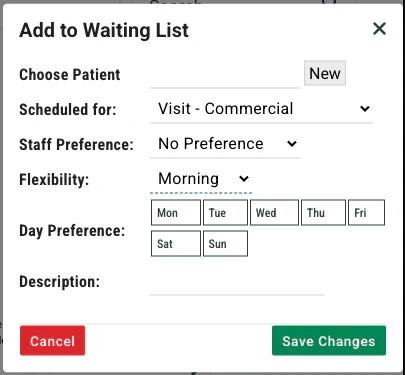
Click the Add to Waiting List button under the Waiting List header. A pop-up will appear where you can enter:- Patient name — Search and select the existing patient. For new patients, click the New button to create their account from this screen.
- Type of visit — The appointment type they’re waiting for
- Staff preference — The preferred clinician (if applicable)
- Earliest time — The earliest time of day they can be seen
- Timing flexibility — How flexible the patient is on timing
- Day preference — Preferred days of the week These preferences help front desk staff quickly identify the right slot when one opens up.
Editing a Waiting List Entry
To update the details on a waiting list entry — preferences have changed, insurance has been approved, or a note needs to be added — click the pencil icon in the top-right corner of the waiting list entry.Moving a Patient from the Waiting List to the Schedule
When a slot opens up and a waiting list patient is ready to schedule, the process is a quick two steps:- Click the patient’s name on their waiting list entry. This opens their case and makes them your most recently viewed patient. Review their details and confirm everything is in order.
- Go to the schedule and click on the appointment slot that matches their waiting list preferences. When the scheduling window opens, select the most recently opened patient — this auto-fills the patient’s information, speeding up the process.
