

Access: All staff can view authorization details. Entering and editing authorization information is available to all staff with access to the patient’s Policies page.
Accessing the Authorization Section
Navigate to a patient’s case: Patient Menu Bar > Patient Info > Policies. If the Authorization Required setting on the policy’s Benefits screen is set to Yes, an Authorization button appears next to the Benefits button on the Policies page. If the Authorization button is not visible, Authorization Required is set to No on that policy’s benefits. Click Authorization to open the authorization entry screen.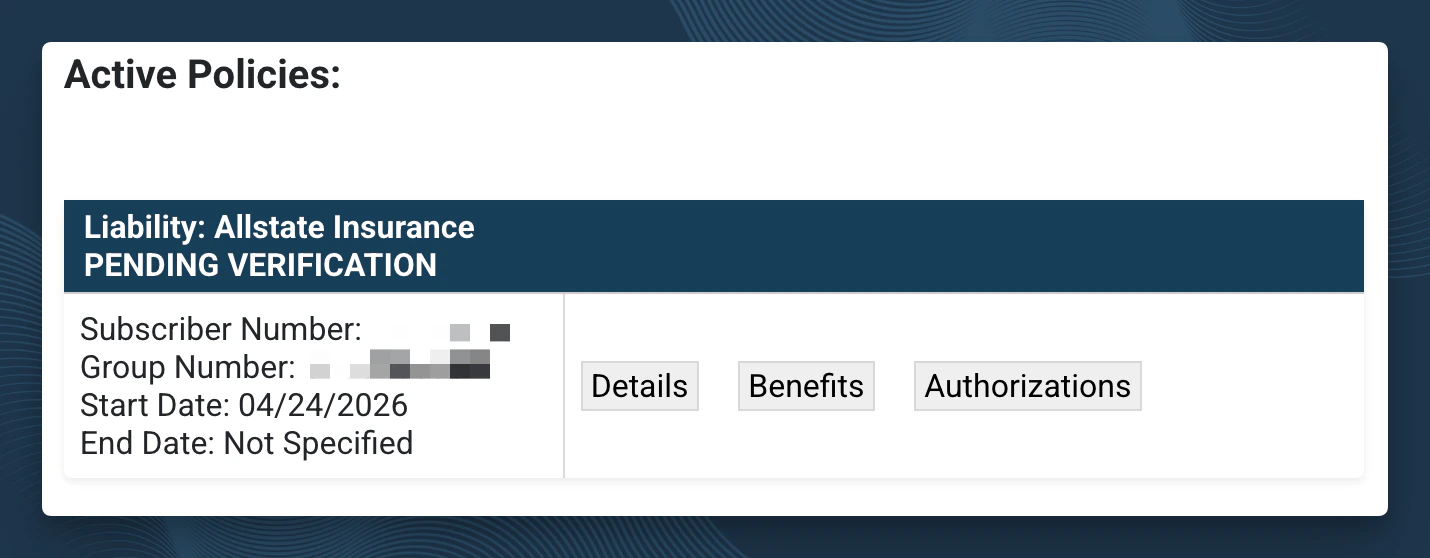
Entering Authorization Details
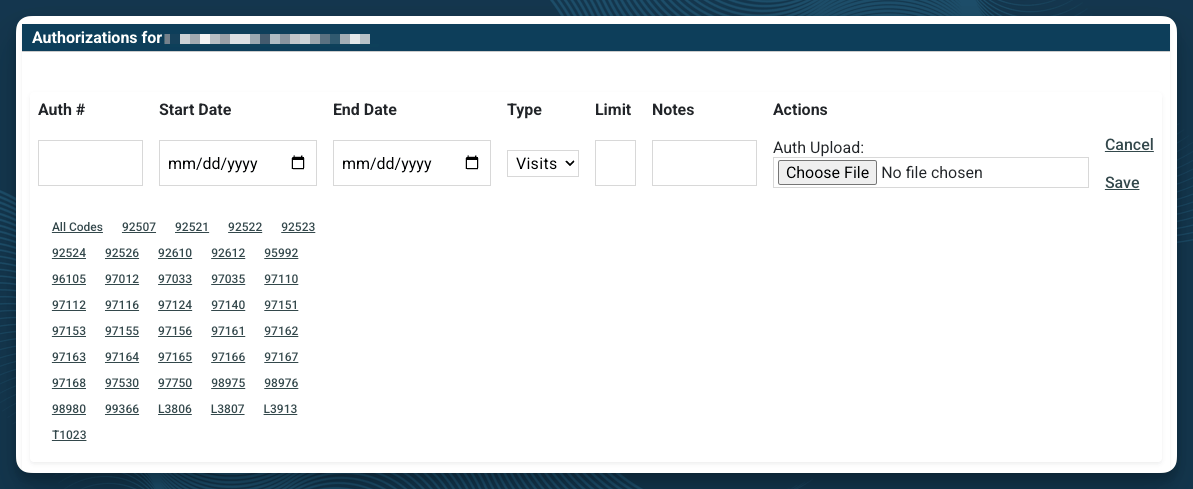
- Authorization number - The confirmation number provided by the payer
- Start date / End date - The date range the authorization covers
- Type - Visits or units (depending on how the authorization was issued)
- Limit - The number of visits or units approved
- Notes - Any notes that need to be documented with the authorization
- Actions - Upload a copy of the authorization to be stored along with the entered information
- Code Selector - Click all codes authorized under this authorization
Note: Authorization documents should be uploaded directly to the patient’s Policy, not through the Stored Documents page. Uploading elsewhere won’t clear the Authorization Required Documents task, and the claim will continue to show an error even though a file has been submitted.
Stub Authorizations
A stub authorization is an automatic placeholder entered by the system when a policy requires authorization after a specified number of visits — for example, “authorization required prior to visit 6.” In this scenario, the first 5 visits can proceed without an authorization on file. A stub authorization is entered by StrataEMR to track those initial visits and alert your team as you approach the trigger point.Entering Authorizations for Patients Mid-Treatment at Go-Live
If your practice is transitioning to StrataEMR and patients are already mid-authorization from your previous system, you’ll need to account for visits that were already used before StrataEMR began tracking. Do not enter the full original authorized visit count. Instead, enter only the remaining visits so StrataEMR tracks correctly from your go-live date forward. How to calculate the adjusted limit: If a patient had 15 visits authorized and 10 were completed in your previous system before going live in StrataEMR, enter a limit of 5 — the visits remaining at the time of entry. Use the Notes field to document the adjustment so your team understands the context. For example:10 visits completed prior to StrataEMR. Authorization limit adjusted to reflect remaining visits.
Retro Authorizations
A retro authorization is needed when a claim is denied because authorization was not obtained before treatment. When this occurs you may see a task generated to alert you. The process:- Go to the patient’s Policies page and check the Authorization section
- If no authorization exists, submit a retro authorization request to the payer
- Document the action taken and expected timeline in the task notes
- Defer the related task 3–5 business days while awaiting payer response
- If the retro authorization is denied, escalate for write-off review