

Access: Editing template settings requires Therapy Director-level access or higher. Clinicians with Clinical Staff permissions can use templates but cannot modify their settings. Contact your StrataPT Customer Success Manager if you need to change a template configuration.
Document Family
Document Family groups related templates together within the Templates Library. StrataEMR uses this grouping to organize templates and control which are available in a given clinical context. Common families include Physical Therapy Templates, Occupational Therapy Templates, and Patient Engagement Forms. This field is set during your account build. Fragments must also be assigned to the correct Document Family to inherit properly into templates within that family.Template Name
Template Name is the display name clinicians see when selecting a document from the patient chart. Names should clearly identify the note type and any relevant context — for example, “Initial Evaluation (Cervical)” or “Daily Note (PT).”Include Time In / Time Out
When set to Yes, StrataEMR adds Time In and Time Out fields to the top of the document. Clinicians record the start and end time of the treatment session. Enable this for templates where timed services are being billed, such as therapeutic exercise or manual therapy. Some payers — including certain Medicaid plans — require time documentation on all note types. Practices that treat workers’ compensation patients often enable this across all templates for consistency.Template Type
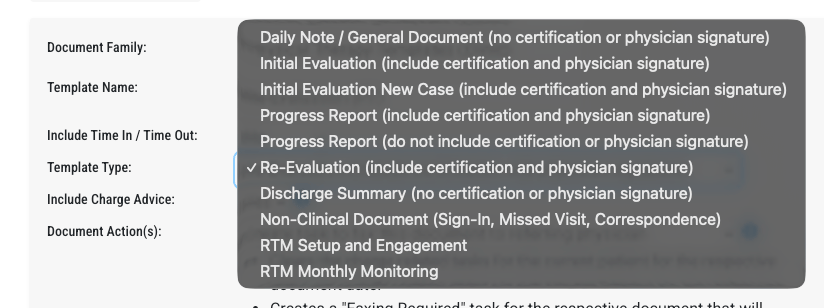
Daily Note / General Document
(no certification or physician signature) The default type for treatment notes. No certification block appears. The document submits charges to billing when completed and applies standard billing validations (treatment minutes, 8-minute rule, plan of care date check). Does not update any case dates.Initial Evaluation
(includes certification and physician signature) Displays the Certification of Medical Necessity panel with the physician signature block. On completion:- Updates Initial Evaluation Date in the case to the document date
- Updates Plan of Care Certification Start to the document date
- Updates Plan of Care Certification Expires based on the certification period entered in the document
Initial Evaluation New Case
(includes certification and physician signature) Identical to Initial Evaluation in every respect. The distinction is organizational - intended for cases that represent a brand-new episode of care rather than a continuing one. Same certification panel, same case date updates, same billing behavior.Progress Report
(with certification and physician signature) Displays the Certification of Medical Necessity panel. On completion:- Updates Plan of Care Certification Expires based on the certification period in the document
- Does not update Initial Evaluation Date or Certification Start
Progress Report
(no certification or physician signature) No certification panel. Submits charges to billing and applies standard billing validations. Does not update any case dates. Used for interim progress notes that are purely clinical documentation with no recertification component. Payers with the 10-visit progress note requirement will still evaluate this document.Re-Evaluation
(includes certification and physician signature) Displays the Certification of Medical Necessity panel. On completion:- Updates InitialEvaluationDate to the document date
- Updates CertificationStart to the document date
- Updates CertificationExpires based on the certification period entered in the document
Discharge Summary
(no certification or physician signature) No certification panel. When paired with a discharge document action (set separately), completing this document can trigger the patient’s case to be marked as discharged. If the organization has the discharge-outside-plan-of-care setting enabled, this type is exempt from the certification period expiry enforcement that blocks other document types from being completed after the plan expires.Non-Clinical Document
(Sign-In Sheet, Missed Visit, Correspondence) No certification panel. Treatment minutes validation and the CMS 8-minute rule are bypassed entirely. Intended for administrative documents that are not clinical encounters - sign-in sheets, missed visit records, correspondence letters. These documents do not generate billable charges and are not subject to billing validations.RTM Setup and Engagement
No certification panel. Exempt from the standard plan of care billing check. When saved as a draft, the system creates a billing reminder task specifically for RTM setup and engagement charges. Billing plan of care visit-count logic is excluded for RTM documents. Used for Remote Therapeutic Monitoring enrollment and initial engagement documentation.RTM Monthly Monitoring
Identical behavior to RTM Setup and Engagement. The billing task created on draft save is specific to monthly monitoring charges rather than setup charges.Include Charge Advice
When set to Yes, StrataEMR displays CPT code recommendations inside the document as the clinician works. Charge Advice surfaces suggested billing codes and units based on documented services. Most practices set this to Yes to support accurate charge capture at the point of documentation. Set it to No for non-billable document types, such as non-clinical notes or administrative forms.Document Action(s)
Document Actions define what StrataEMR does automatically when a clinician completes the document. Every action clears charge-related tasks for the patient on that document date and marks the corresponding schedule visit as “Completed.” Mark daily documentation task as completed — Completes the document and marks the visit as done. No additional tasks are created. Use this for standard daily notes where no follow-up action is needed. Create task to fax this document to referring physician — Completes the document and creates a “Faxing Required” task that expires 20 days from the completion date. Front desk or admin staff work this task when the fax hasn’t been sent yet. Once the document is faxed, the Faxing Required task automatically resolves and a “Pending Signature” task is created to track the physician’s signed return. Use this when you want faxing handled by admin staff rather than the treating clinician. Redirect to document faxing upon completion — Completes the document and immediately opens the fax page so the clinician can send the fax at that moment. No task is created. Use this when you want the clinician to handle faxing directly rather than delegating to front desk. Update patient status to inactive (discharged) — Completes the document, changes the patient’s status to “Inactive / Discharged,” saves the discharge date, and deletes all future appointments for that patient.Signature Mode
Signature Mode controls whose signature is captured when the document is completed. The default setting, Staff, captures the signature of the clinician who is logged in and completing the note. For practices using a PTA or COTA cosign workflow, this setting works alongside the “Prevent Document (with Billable Charges) Completion” staff permission. When that permission is enabled for an assistant, their notes save as drafts and generate a review task for the supervising therapist, who must co-sign to complete and bill the document.Signature Mode options beyond “Staff” may be available depending on your account configuration. If you need a different signature workflow — such as requiring a PT signature on all evaluation templates — contact your StrataPT Customer Success Manager.