For a therapy practice, clinical documentation isn’t just a compliance requirement — it’s the backbone of clean billing, defensible records, and efficient care delivery. StrataEMR structures documentation around three reusable layers — Templates, Sections, and Fragments — so clinicians document faster, nothing critical gets missed, and information flows automatically across a patient’s full episode of care.
Access: All clinical staff can create and complete documents. Editing templates, fragments, and selections in the Setup area requires Therapy Director permissions or above. Front Desk staff can view clinical documents but cannot edit them.
The Three Layers of Documentation
Templates
Templates are the container documents that define each document type in StrataEMR — Initial Evaluation, Daily Treatment Note, Re-Evaluation, Progress Report, Discharge Summary, and others. Templates are organized in the Templates Library (Menu Bar > Settings > Templates Library) and grouped into Document Families such as Physical Therapy Templates, Patient Engagement Forms, and Home Exercise Templates.
Each template defines which sections and fragments appear in that document type, and in what order.
Sections
Every StrataEMR template is built from up to six core sections. These sections appear in the same order across all document types, so clinicians, auditors, and referring physicians can always find the same category of information in the same place.
Not every document type uses all six sections. A Daily Treatment Note does not include a full Evaluations section, for example. But when a section appears, it always serves the same purpose.
Fragments
Fragments are the individual building blocks inside each section. A section is the chapter heading; fragments are the content within it.
For example, the Subjective section might contain fragments for Functional Limitations, Behavioral Observations, Home Program Participation, and Prognosis. Each fragment is a discrete, named component that captures one specific piece of clinical information.
Fragments are the unit of reuse in StrataEMR. When a document inherits information from a prior record, it inherits at the section level — entire sections copy from prior documents. For inheritance to work correctly between document types, fragments must have matching names across templates.
Selections
Selections are the interactive pieces within fragments — typically shown in parentheses — where a clinician makes a choice. For example, (subjective body area) is a selection within the Subjective / Chief Complaints fragment. Selections can be configured as required (red), optional (blue), or completed (green).
The three-level hierarchy is:
- Templates → contain Sections and Fragments
- Fragments → contain Selections and free-text fields
- Selections → the individual interactive choices within a fragment
Clinical documentation does not start from scratch at every visit. StrataEMR pre-populates new documents from prior records through document inheritance, controlled by the option you choose when creating a new document.
Starting Documentation from the Schedule
Click the clipboard icon on a scheduled appointment to start documentation. StrataEMR uses the appointment type name to determine what happens next:
- If the appointment type name contains
eval, progress, discharge, or plan, StrataEMR routes you to the Clinical Documentation page to choose your creation option.
- If the appointment type name contains none of those terms, StrataEMR treats it as a routine treatment session and automatically clones the most recent completed document with a “General Document” charge type to the current date of service.
Appointment type naming matters. If your practice uses custom appointment type names, make sure evaluation, progress, discharge, and plan-related appointments include the relevant keyword. Otherwise StrataEMR will auto-clone instead of routing you to the Clinical Documentation page.
Three Ways to Create a Document
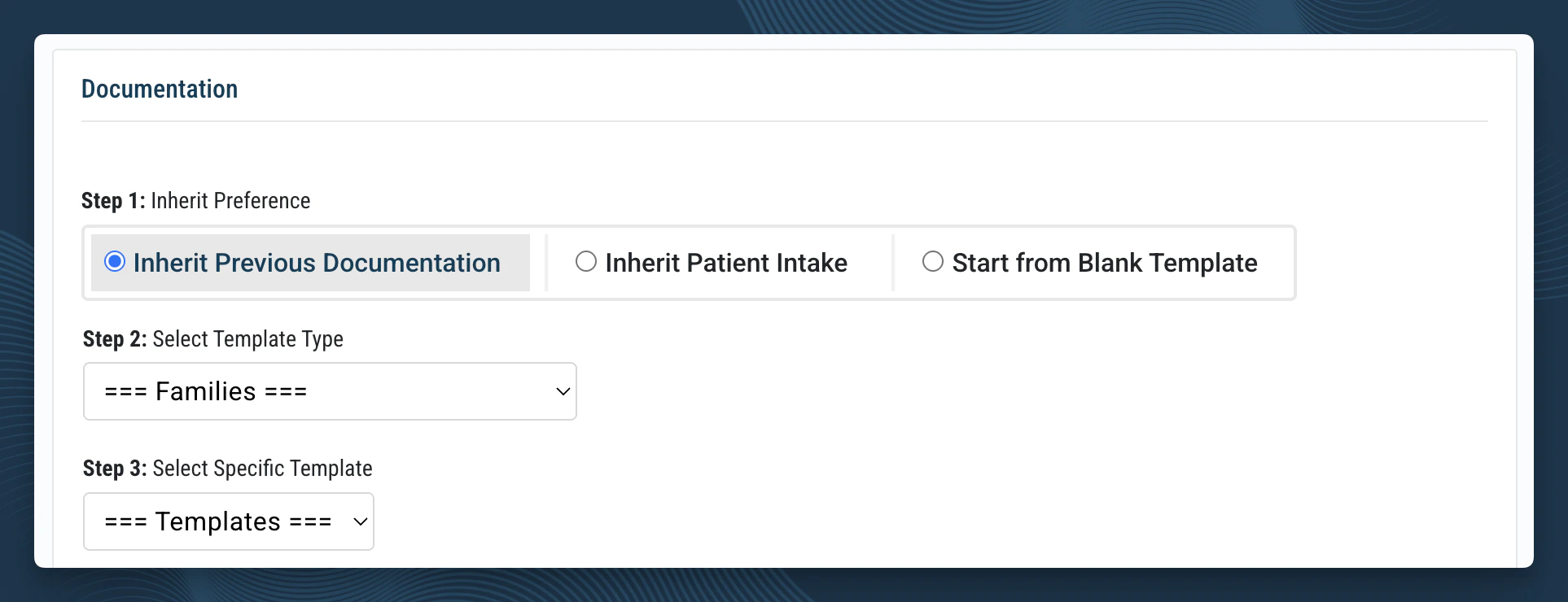
When you access the Clinical Documentation page from the patient menu bar of a case, you have three options:
Inherit Previous Pulls content from the patient’s most recently completed clinical document. Sections and fragments from that document — goals, diagnoses, medical history, Plan of Care details — carry forward into the new document for you to review and update.
Use this for Re-Evaluations, Progress Reports, and Discharge Summaries, where you need the current clinical picture to carry forward.
Inherit Patient Intake Pulls content from the patient’s most recently completed intake form. Demographic information, medical history, medications, and allergies populate the corresponding sections of the new document.
Use this for Initial Evaluations on patients who have completed an intake form. The lookup behavior setting on the template must be set to “any document” for intake inheritance to work correctly.
Start From Blank Uses the template as designed with no pre-populated content. Every section and fragment starts empty.
Use this for brand-new patients without an intake form, or when prior content would not be relevant to the new document type.
What Inheritance Means in Practice
When a document inherits from a prior record, the content is copied — not linked. You can freely edit, update, or remove inherited content without affecting the source document. Each document in the patient’s chart is a standalone record of what was true at that point in time.
Section-level inheritance: Inheritance works at the section level, not the fragment level. This means a customized section in the new document will overwrite the template defaults completely. Be deliberate when editing inherited sections.
Which Option to Use by Document Type
Document Editing Modes
When editing a template in the Templates Library or a live document, two editing modes are available:
Interactive Mode — The default view. Displays the document as a clinician would see it, with selections, checkboxes, and fragment controls visible and interactive.
Text Editing Mode — Allows editing of static text content within the template. Required for making certain configuration changes such as marking a selection as required or modifying fragment structure. Text Editing mode — and the more advanced Raw Editing mode — are only available to Therapy Director permissions and above.
Compliance Controls
StrataEMR includes several features to keep clinical documentation compliant.
Required Fields
Selections within a template can be marked as required using the selection enforcement feature. Required selections appear in red and must be completed before a document can be saved as complete.
To mark a selection as required: Menu Bar > Settings > Templates Library → open the template → switch to Text Editing mode → click the selection → set Required to Yes → save.
Staff Type Restrictions
The Staff Type Required setting on a template controls which permission level must sign a document before it can be marked complete. This prevents documents that require a licensed therapist’s signature from being inadvertently completed by a lower-permission staff member.
Document Review Notes
Review notes can be added to any document using the Completion Action dropdown at the bottom of the document. This creates a task for another staff member to review or take action, without requiring the document to be sent back to draft.
Amending Completed Documents
Once a document has been completed and billed, direct edits are not permitted. Corrections are made through an amendment, which creates a versioned record (V2) noting the changes made. To amend: Documents > Clinical Documents > Edit next to the document → complete the Amended Medical Record field describing the correction → make changes → save as completed. To learn more about amending documents, see Amending a Completed Document.
Template Customization
Template customization — adding, removing, or reordering fragments — is managed in the Templates Library and requires Therapy Director permissions. Changes made at the template level affect all future documents created from that template. Changes can also be made at the patient level for a single document without affecting the template.
Fragment naming and inheritance: Fragments must have matching names across related template types for inheritance to work. If a fragment is renamed or moved between document families incorrectly, it can become orphaned — breaking data flow from prior documents. Always confirm fragment naming before making structural template changes.