

Access: Starting and editing clinical documentation requires Clinical Staff permissions or above. Front Desk staff can view clinical documents but cannot create or edit them.
Starting from the Schedule
The fastest way to begin a note is from the schedule. Click the clipboard icon next to the patient’s appointment on the schedule calendar.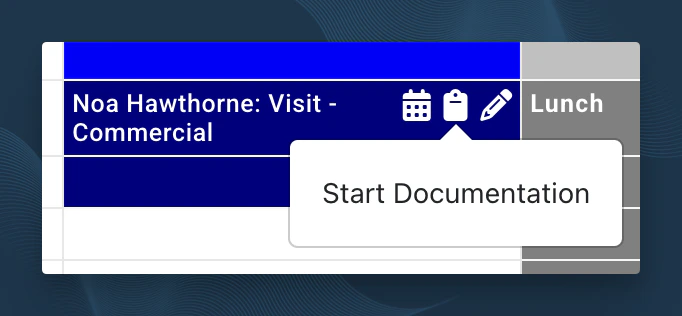
eval, progress, discharge, or plan — StrataEMR routes you to the Clinical Documents page, where you choose which type of document to create and how to inherit content. These appointment types correspond to documents that require deliberate decisions about what to carry forward.
If the appointment type contains none of those keywords — StrataEMR automatically searches for the most recent completed document with a “General Document” charge type, usually a Daily Note, and either clones it to the current date of service or opens the existing document if one already exists for that date. If no suitable prior document is found, you are routed to the Clinical Documents page.
Starting from the Clinical Documents Page
You can also start documentation directly from the patient’s case: Patient Menu Bar > Documents > Clinical Documents. The Clinical Documents page shows all draft and completed documents for the selected patient. To create a new document, select the document type from the dropdown menus at the top of the page — these include clinical templates, outcome measures, pain drawings, and physician letters. Once you’ve selected a template, choose how to create the document:Inherit Previous
Pulls content from the patient’s most recently completed clinical document. Goals, diagnoses, medical history, and Plan of Care details carry forward into the new document for you to review and update. Use this for Daily Notes, along with Re-Evaluations, Progress Reports, and Discharge Summaries when you want the current clinical picture of the prior document to carry forward.Inherit Patient Intake
Pulls content from the patient’s most recently completed intake form. Demographics, medical history, medications, and allergies pre-populate the corresponding sections of the new document. Use this for Initial Evaluations on patients who have completed an intake form. This saves the clinician from re-entering information the front desk already collected.Start From Blank
Uses the template as designed with no pre-populated content. Every section and fragment starts empty. Use this for brand-new patients without an intake form, or when prior content wouldn’t be relevant to the new document type, like a Re-Evaluation with distinctly different fragments than the prior day’s Daily Note.Prerequisites for Completing a Document
Before a document can be marked complete and submitted for billing, the following must be in place on the patient’s account:- An active insurance policy covering the date of service. If no valid policy exists for the visit date, documentation cannot be completed. See Policies overview.
- Benefit verification must not be in a pending state. A Pending Benefit Verification task will block document completion until benefits are confirmed. See Authorization Management.
- Authorization on file if the policy requires it. If authorization is required and none is entered, documentation cannot be completed.
- A referring provider with NPI for all Medicare patients. Claims cannot be submitted for Medicare patients without a referring provider listed.