

Before You Begin
- You need Clinical Staff permissions or above to create a home exercise plan.
- The patient needs an open case.
- Keep in mind that a home exercise plan is a separate document from your daily note or evaluation. Many therapists keep the daily note open in one browser tab and build the plan in another.
Start a Home Exercise Plan
- Navigate to Clinical Documents within a case: Patient Menu Bar > Documents > Clinical Documents.
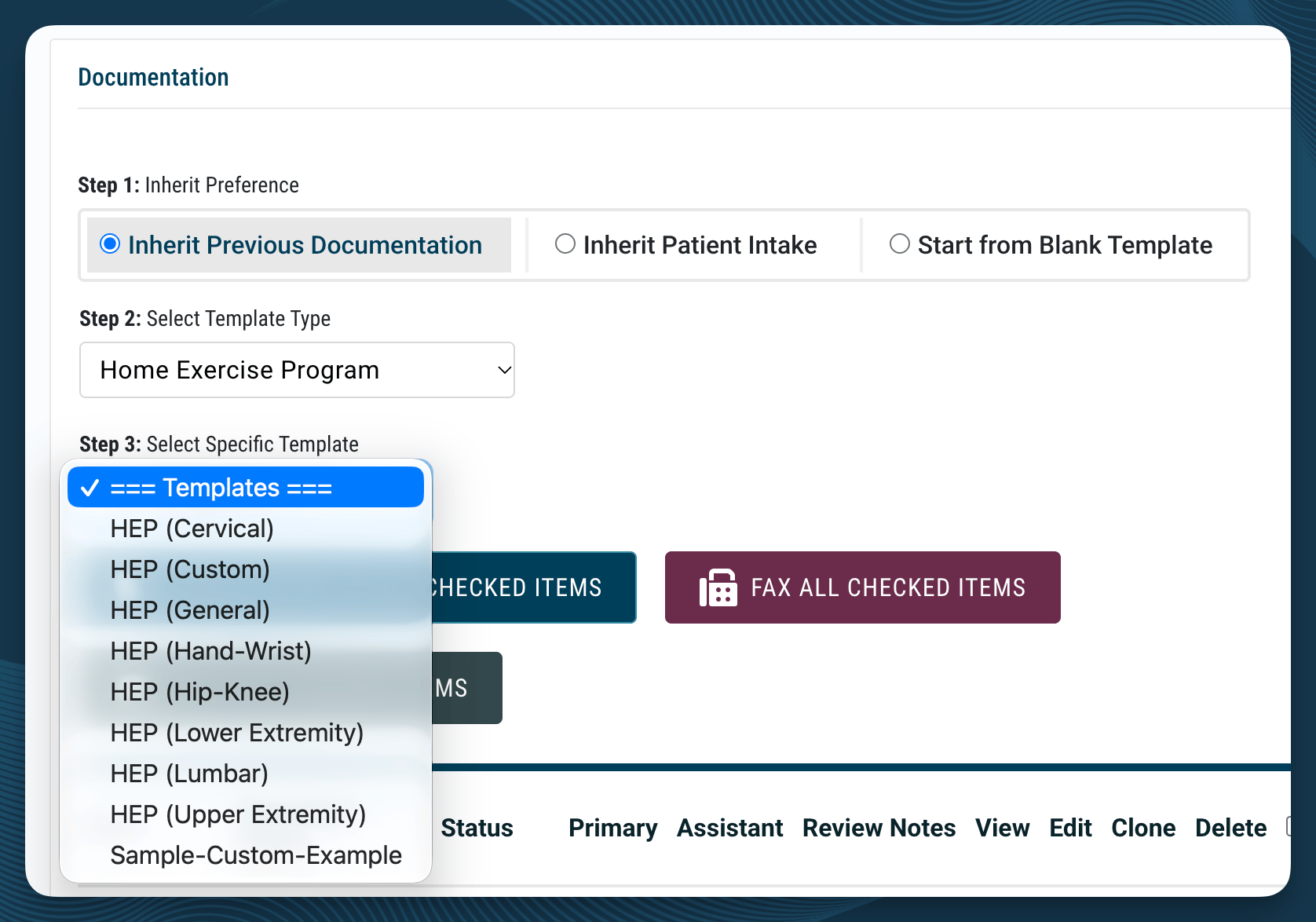
- Choose how to create the document. If the patient already has a plan for this region, choose Inherit Previous Documentation.
- From the template dropdown, select the Home Exercise Program family.
- Select a starting plan. Starting plans are organized by body region or diagnosis, such as hip and knee, hand and wrist, lumbar, or cervical.
Customize the Exercises
The starting plan opens with the exercises most therapists use for that region, along with photos. Adjust it to fit this patient.- Enter the sets, reps, and any specific instructions for each exercise. For example, “Use the green band.”
- Select the minus icon to remove an exercise you don’t want.
- Use the up and down arrows to put the exercises in the order you want the patient to follow.
- To add exercises, select the document heading. Pick an exercise family, select the exercises you want, and select Use Selections. You aren’t limited to the region you started with. You can pull an ankle exercise into a hip and knee plan.
Add an Exercise That Isn’t in the List
Use the custom exercise when you need an exercise StrataEMR doesn’t include.- Select the document heading and open the Exercise - Custom family.
- Select the Custom Exercise and then click Use Selections to add the blank custom exercise to the plan.
- Enter the exercise name and your instructions.
- Select Choose Patient Image. Pick an image from your library, or select Choose File, find the photo on your computer, and select Upload.
- Enter the sets, reps, and any additional instructions.
Save the Plan
Mark the plan complete and save it. The saved plan appears in the patient’s Clinical Documents list with their other documents.Share the Plan with Your Patient
You can give the patient a PDF to print, email the plan, or fax it. StrataEMR doesn’t send a home exercise plan through the patient portal. To send the plan together with another document, such as the daily note, select the checkbox next to each document before you download, email, or fax.Print the Plan
- On the Clinical Documents page, select the checkbox next to the plan.
- Download the plan as a PDF.
- Open the PDF and print it.
Note: You can’t print directly from the document screen. StrataEMR shows a message that clinical documents aren’t meant to be printed, which protects patient information from a quick screen capture. Download the PDF first, then print the PDF.
Email the Plan
- On the Clinical Documents page, select the checkbox next to the plan.
- Select Email Checked Items.
- Review the email address. StrataEMR uses the address on the patient’s case. To send the plan to someone else, such as a family member who helps with the exercises, enter a different address.
- Set a password.
- Enter your message and send the email.
Fax the Plan
If the patient or their provider uses a fax machine, select the plan on the faxing screen and send it the way you send any other document. See Fax Management.Save Exercises and Plans for Reuse
If you give the same exercises often, build them once so you don’t rebuild them for every patient. Changes you make here apply to everyone at your practice who uses the template.Note: Changing templates and saving new exercises requires Therapy Director permissions or above. If you don’t have access, ask someone at your practice who does.
Change a Starting Plan
- Navigate to Template Library: Menu Bar > Settings > Template Library.
- Open the Home Exercise Program family.
- Select the pencil icon next to the plan you want to change.
- Remove, reorder, or add exercises the same way you do for a patient.
- Save the document.
Save a Custom Exercise to Your Exercise List
- Navigate to Fragments Library: Menu Bar > Settings > Fragments Library.
- Open the Exercise - Custom fragment.
- Enter the exercise name and instructions, and choose an image.
- Change the name to the new exercise name, then save.